FITS User Guide
A complete, module-by-module walkthrough of the FITS platform — the AI-assisted GRC (Governance, Risk & Compliance) solution.
What is FITS?
FITS helps organizations build and maintain compliance. It combines a structured data model (organizations, employees, applications, projects) with AI assistance to draft policies, answer compliance questions, run assessments, and map work to compliance frameworks (such as ISO 27001, GDPR, etc.).
The platform is multi-tenant: a tenant is a customer account, which contains one or more organizations, which in turn hold the day-to-day compliance data.
User roles
FITS uses strict role-based access control. What you see in the app depends on your role.
| Role | Scope | What they do |
|---|---|---|
| Super Admin | Platform-wide | Creates and manages tenants and tenant admins. No access to organization data. |
| Tenant Admin | One tenant | Creates organizations and users, assigns users to organizations, configures AI & email providers, runs data imports. |
| End User | Assigned organizations | Does the actual compliance work: policies, assessments, employees, applications, frameworks, etc. |
This guide covers the two roles you interact with daily: Tenant Admin and End User.
Getting started — signing in
- Open the FITS app in your browser.
- You'll land on the sign-in page.
- Enter the email and password for your account and select Sign in.
- After signing in you're taken to the area appropriate for your role:
- Tenant admins see the tenant administration sidebar.
- End users are taken into their organization workspace (if you belong to more than one organization, pick one first).
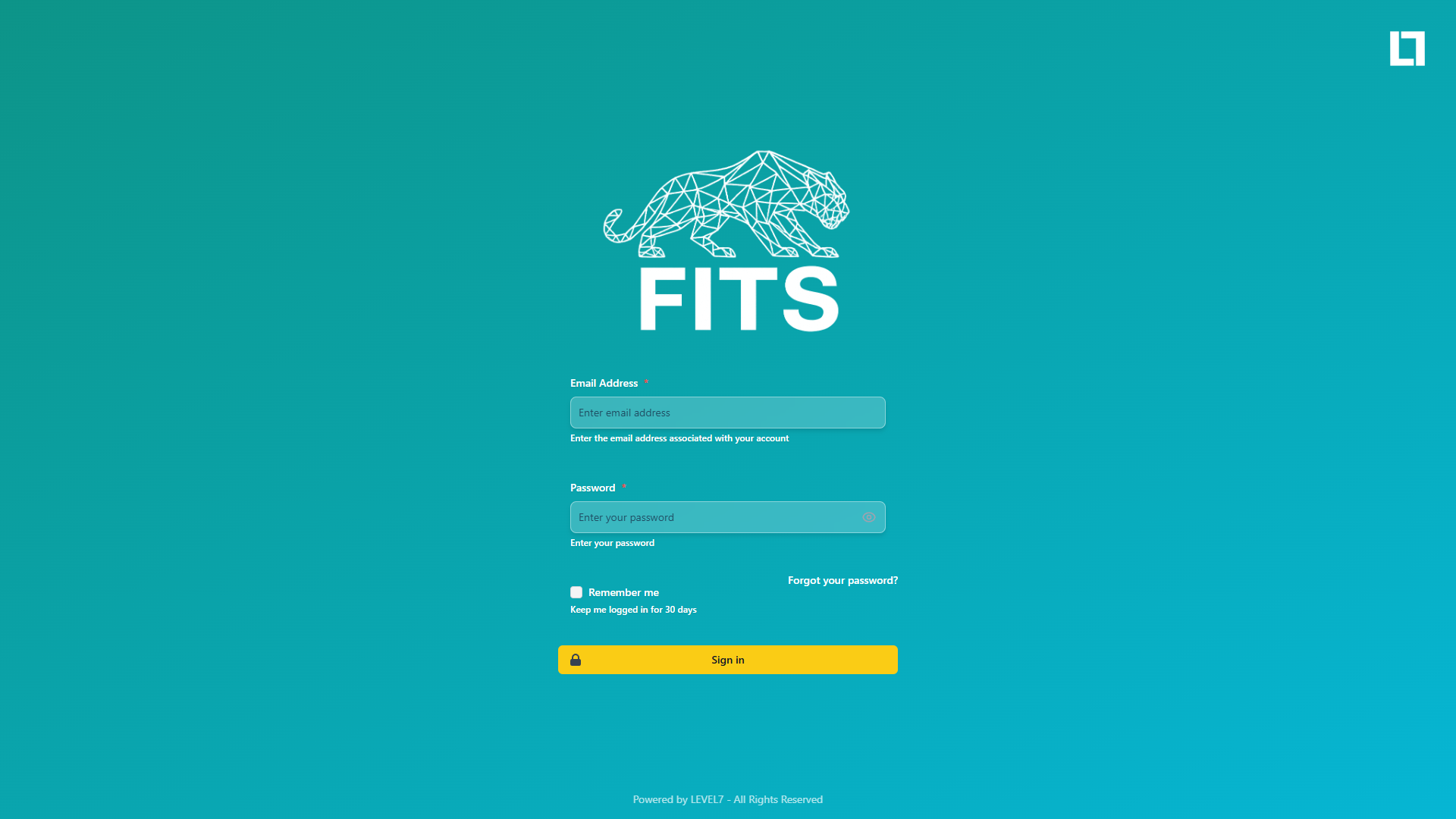
Forgot your password? Use the password reset link on the sign-in page to receive a reset email.
Navigating the app
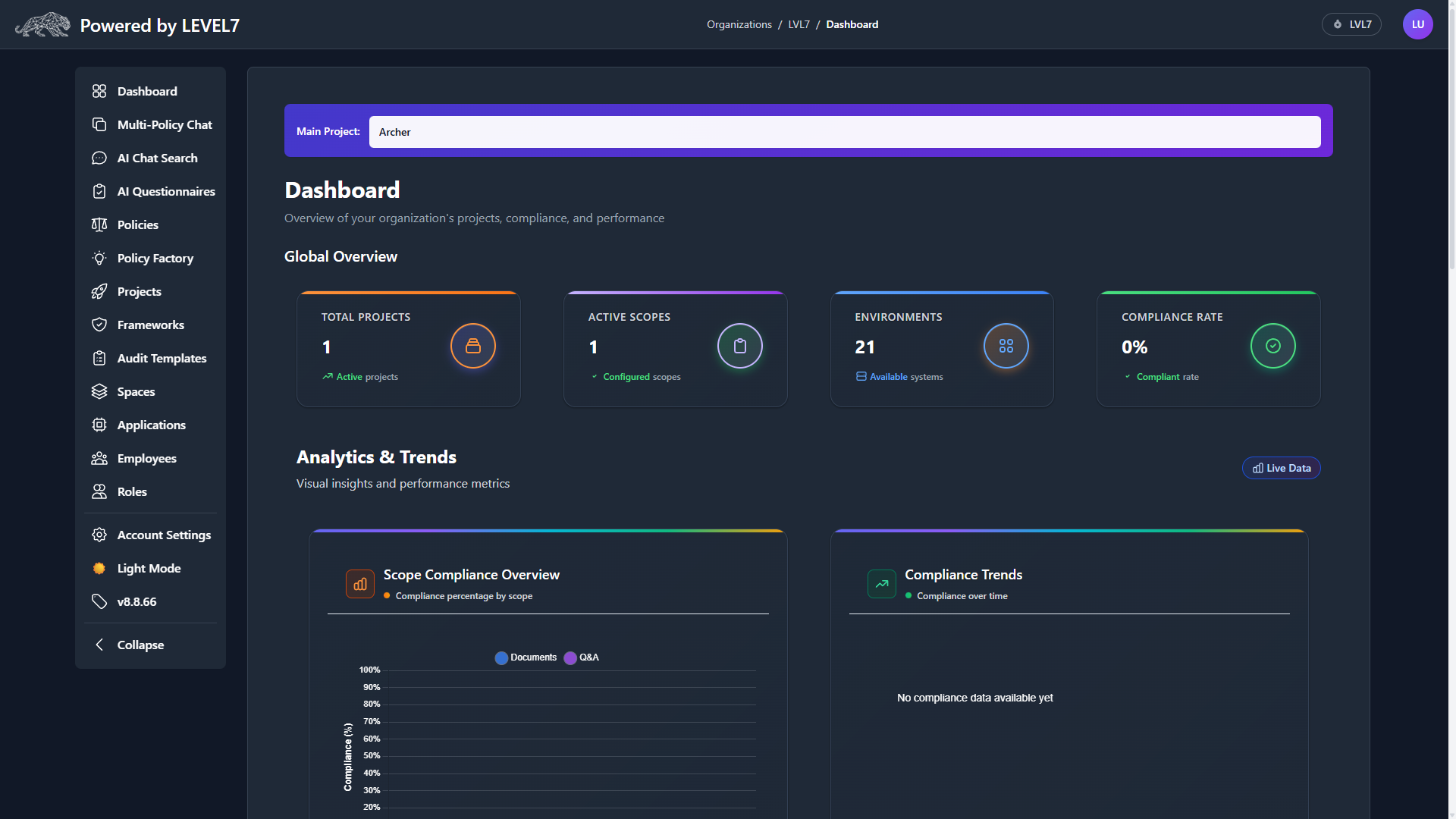
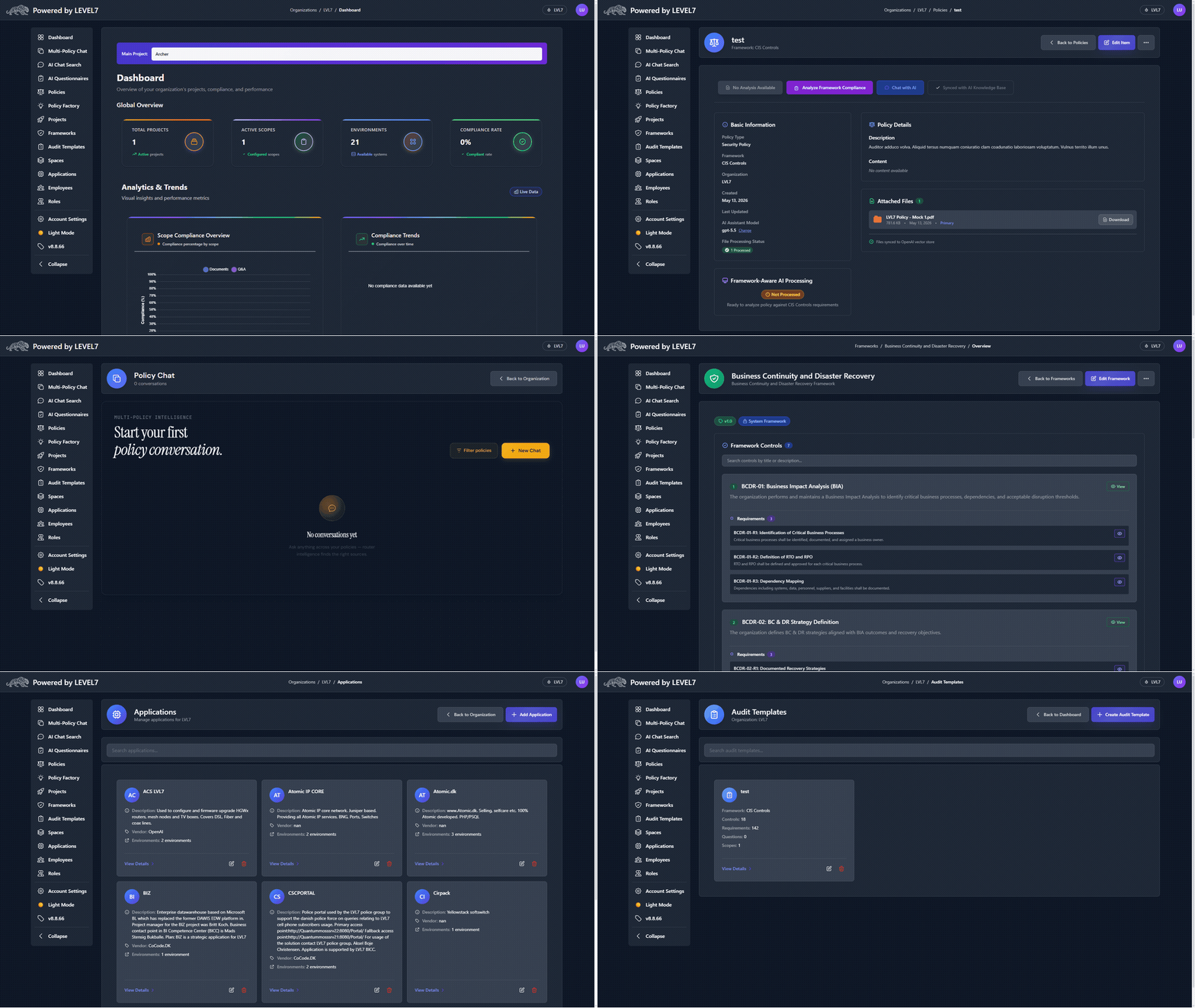
The left sidebar is the primary navigation. Its contents adapt to your role and, for end users, to the modules enabled for your organization.
- The organization name is shown at the top of the sidebar.
- Each entry opens a module (see the role guides below).
- At the bottom you'll find Account Settings, a light/dark theme toggle, the version link, and a collapse button to shrink the sidebar to icons only.