Tenant Admin Guide
Tenant admins manage everything inside a single tenant: the organizations, the people who can use FITS, and the platform connections (AI and email) that power the product. You don't do the day-to-day compliance work here — you set up the environment that end users work in.
Organizations
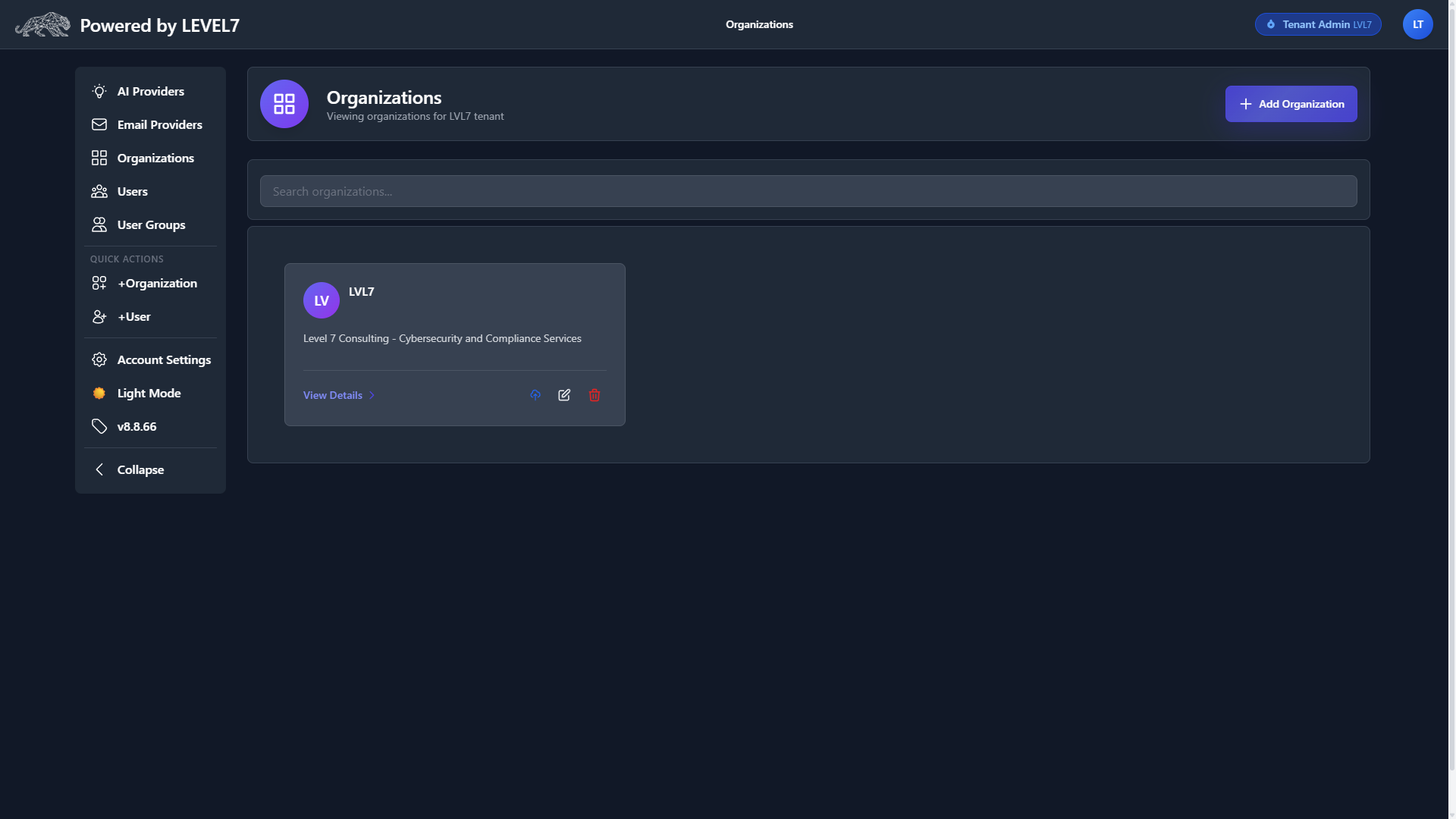
Organizations are the containers for all compliance data — creating one is the first step before users can do any work. The list shows each organization with quick actions to View Details, Import Data, Edit and Delete.
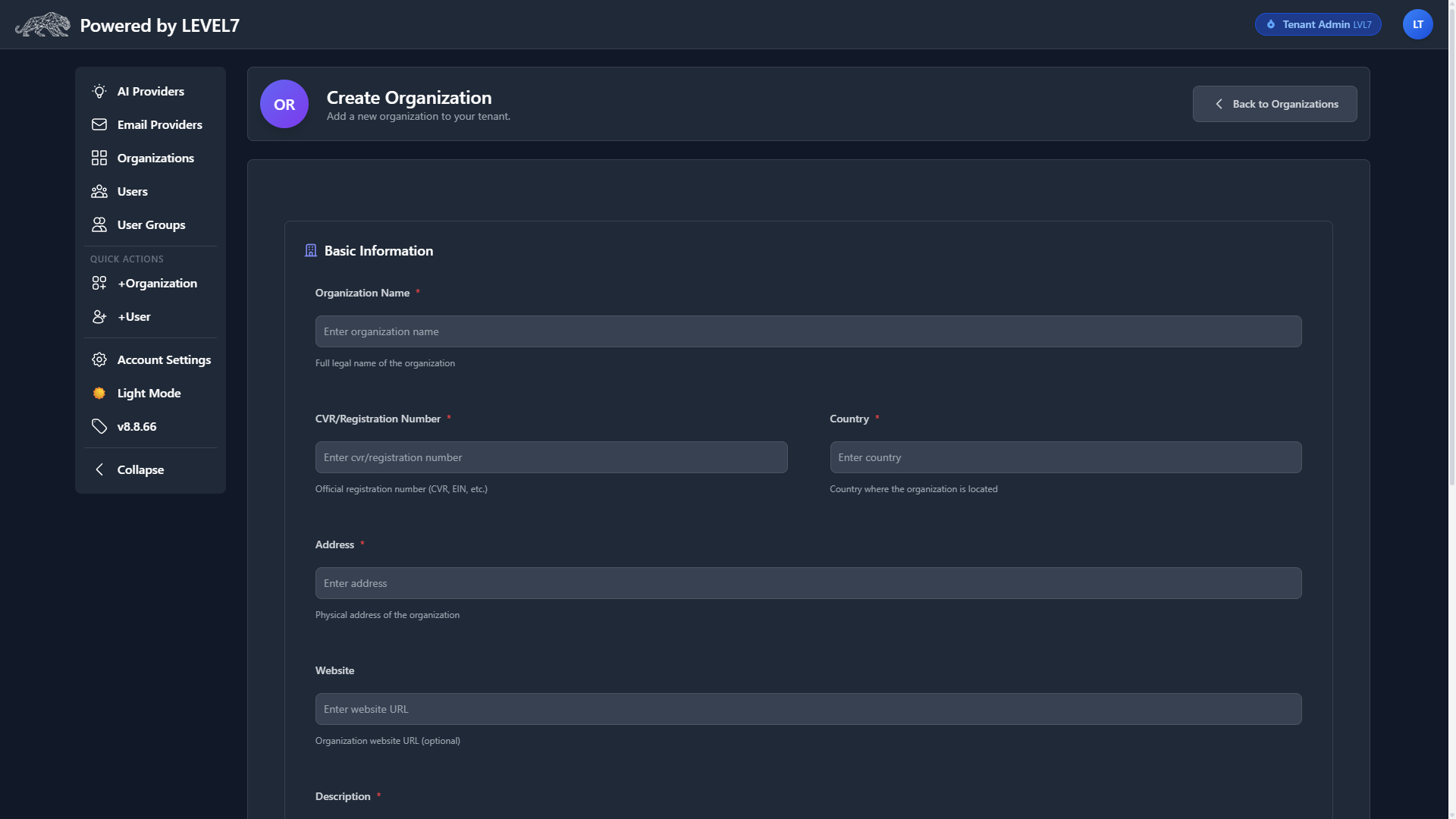
 Create an organization with Add Organization. The form captures Basic Information — Organization Name, CVR/registration number, Country, Address, Website and Description — plus Contact Information.
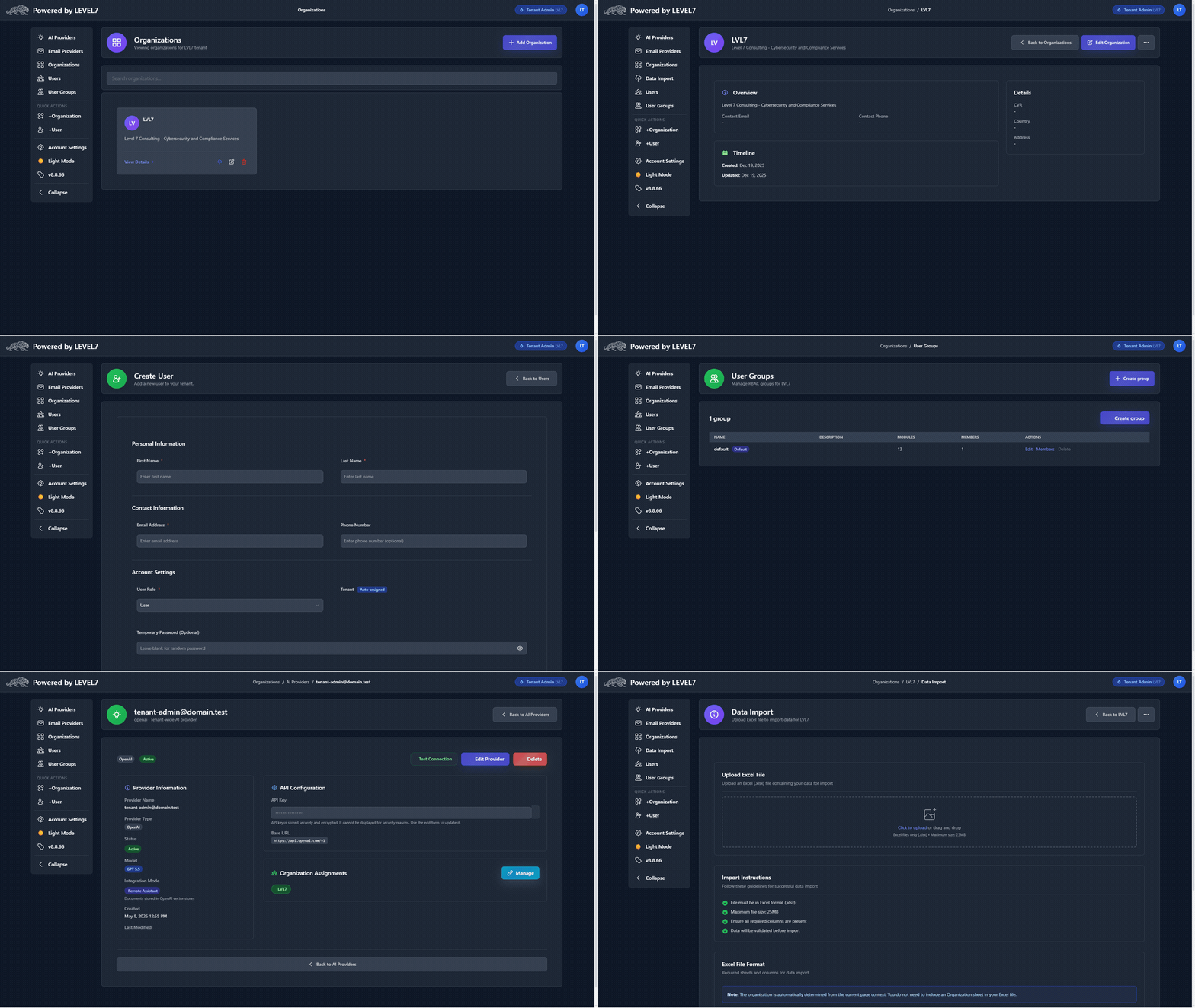
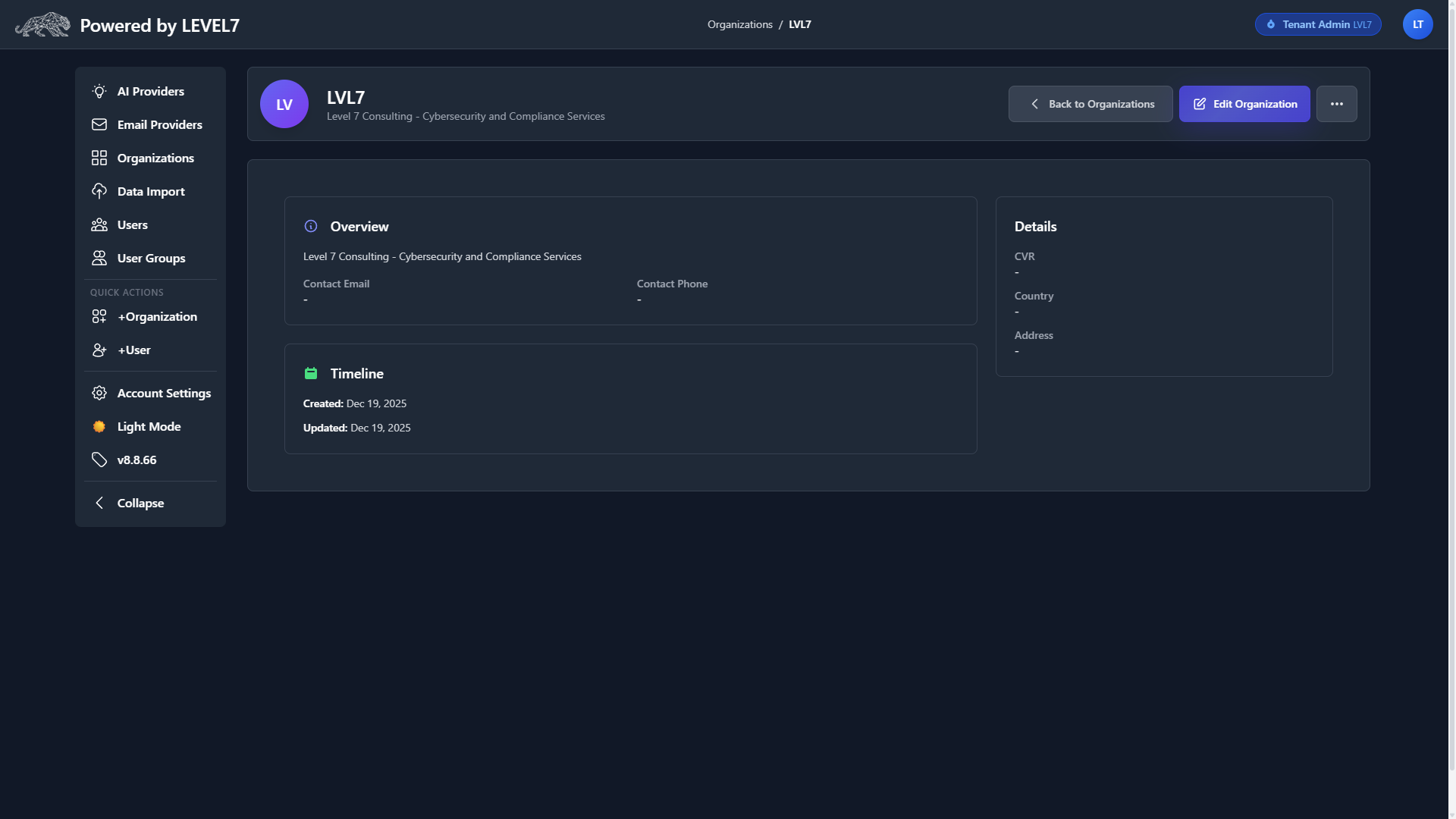
The detail page summarizes the organization's Overview (description, contact email and phone), a Timeline (created/updated) and Details (CVR, country, address), with Edit Organization to update it.
Users
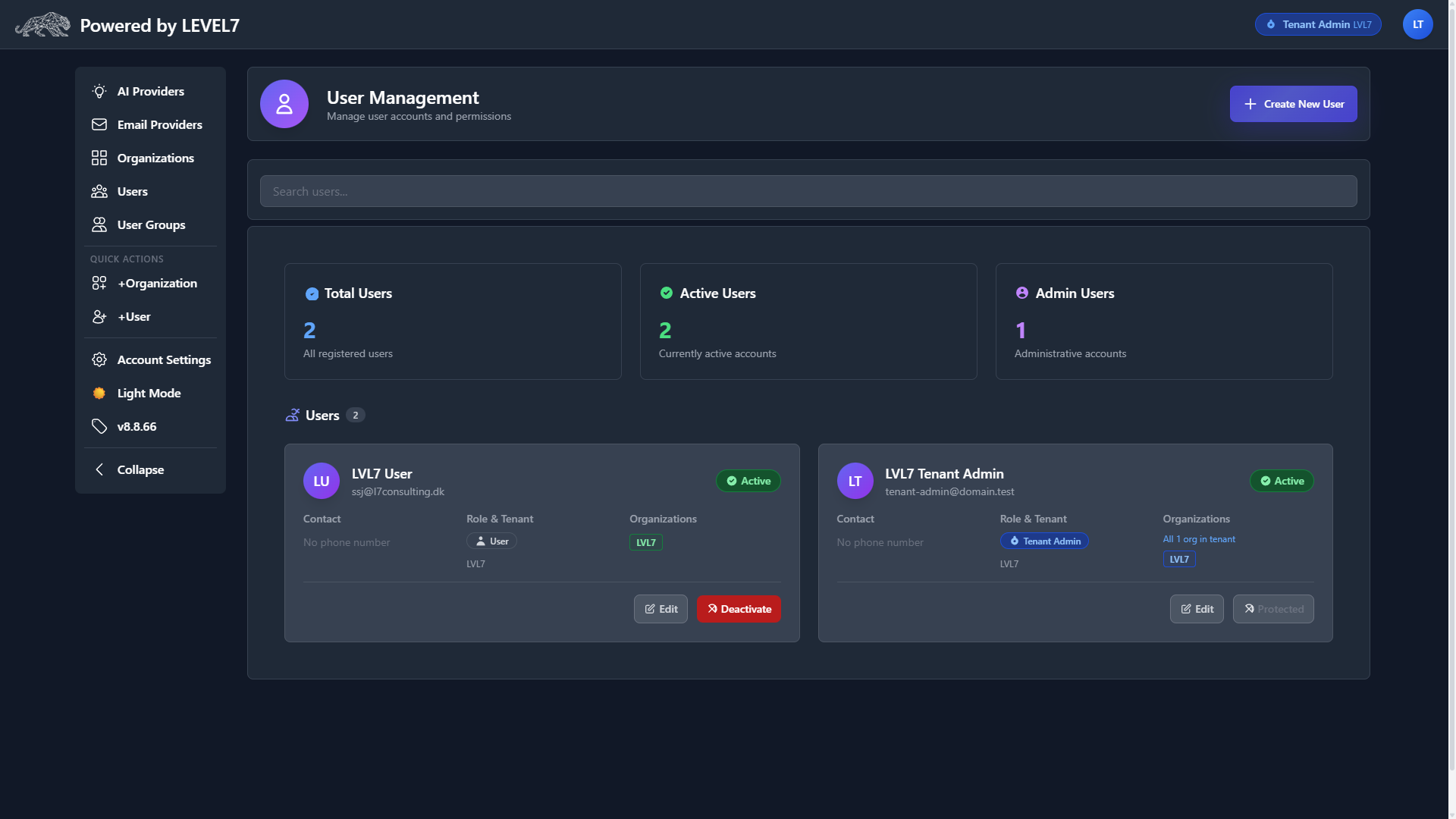
The User Management page is your control center for accounts. Summary cards show Total Users, Active Users and Admin Users, and each user card shows their role, status, organization membership and whether the account is protected. Tenant admins create regular users (not other admins).
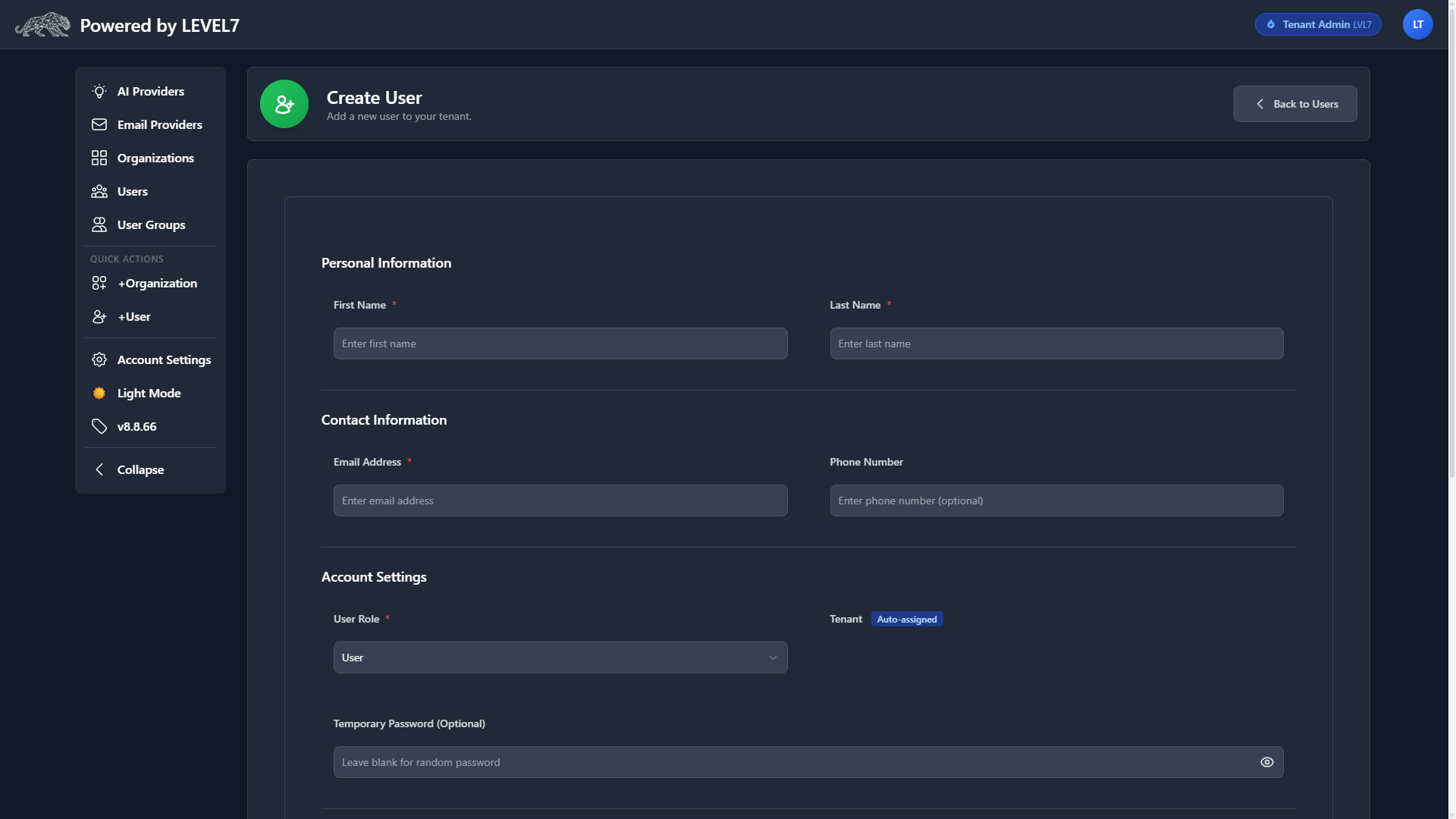
 Create New User opens a form with Personal Information (first/last name), Contact Information (email, optional phone) and Account Settings — a role selector (defaults to User), an auto-assigned tenant, and an optional temporary password. You also assign organization access and user groups here.
User Groups
User groups implement role-based access control (RBAC). The table lists each group with its description, the number of modules it grants access to, and its members. Assigning a user to a group controls, in one place, which modules they can see in an organization. New tenants start with a default group that grants all 13 end-user modules.
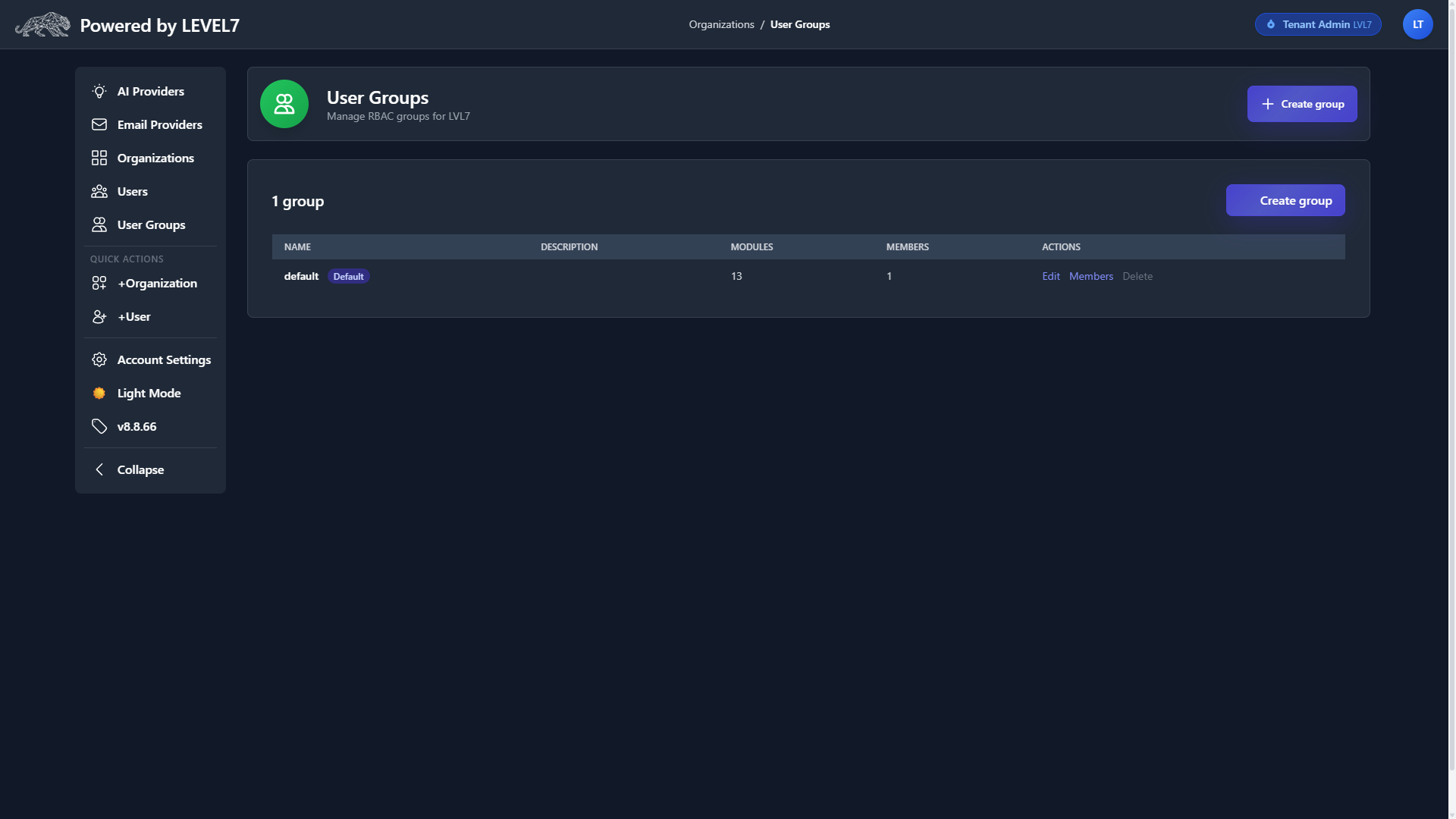
Use Create group to add one, and the Edit / Members actions to adjust its module permissions and membership.
AI Providers
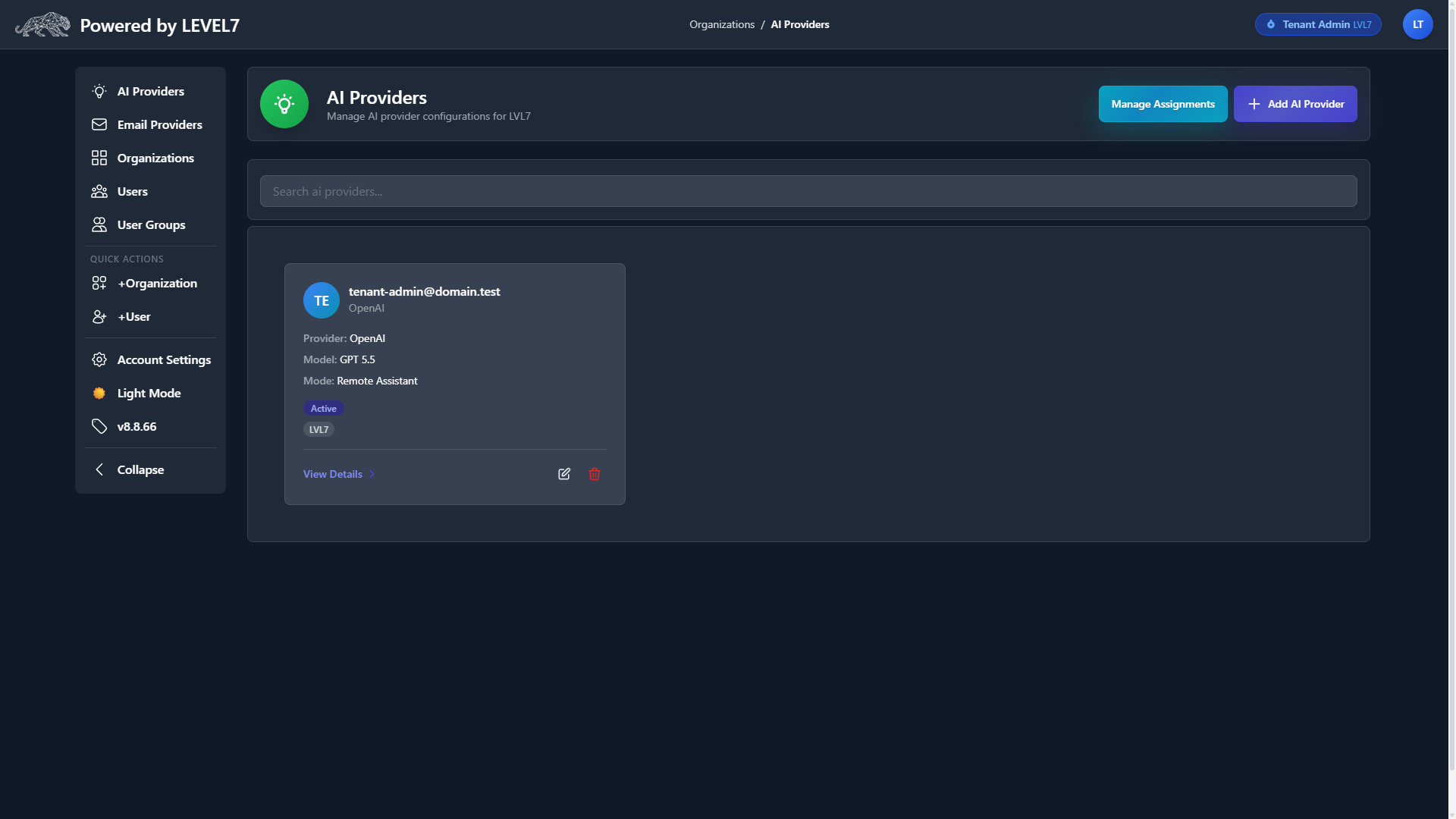
FITS's AI features (Policy Factory, chat, questionnaires) run on configurable AI/LLM providers. The list shows each provider's type, model, integration mode and status, with Add AI Provider to register one and Manage Assignments to control which organizations use which provider.
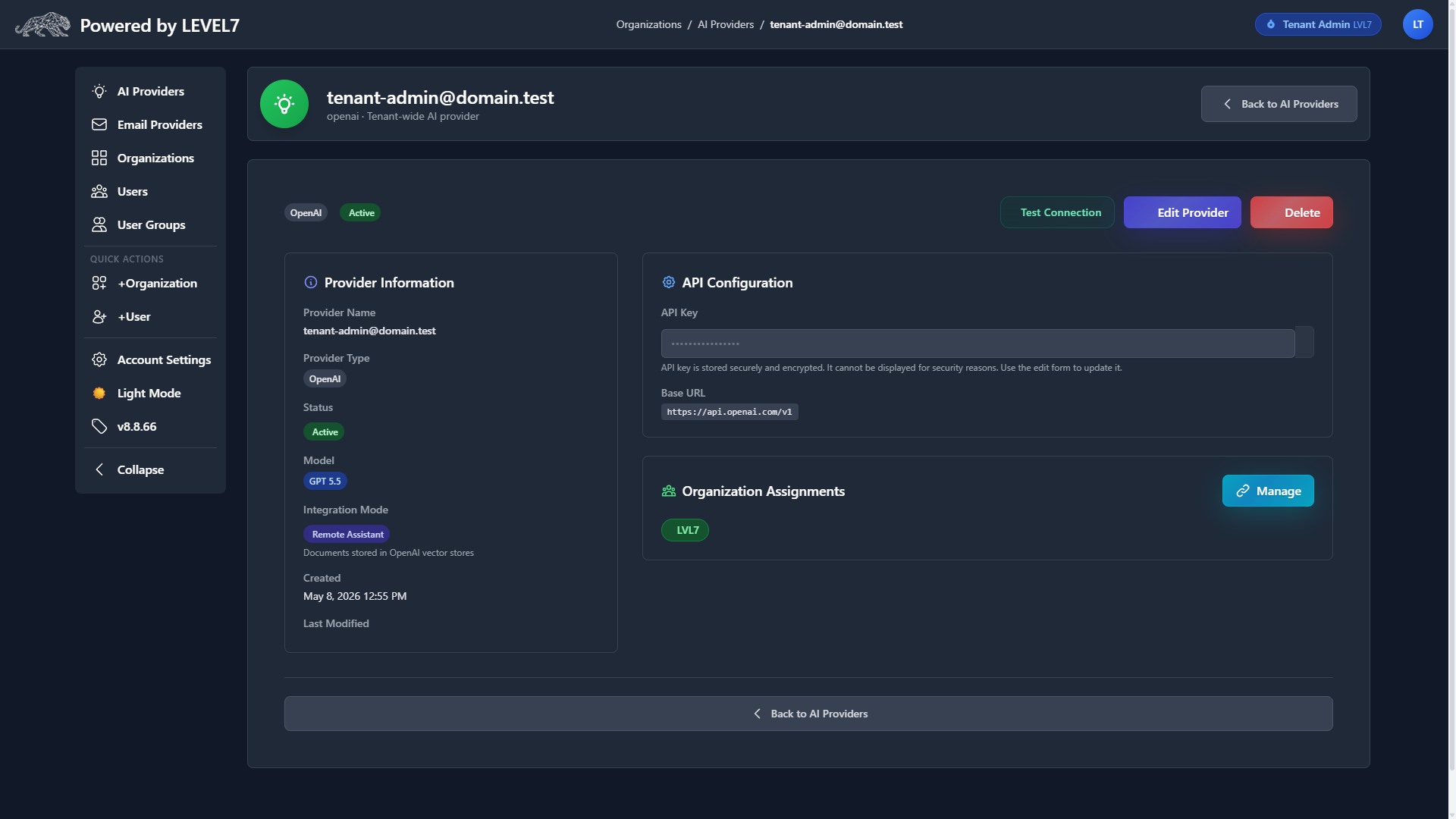
A provider's detail page is split into Provider Information (name, type, status, model, integration mode, dates), API Configuration (the API key, which is stored encrypted and masked — never shown again — plus the base URL) and Organization Assignments. Use Test Connection to verify it works.
Email Providers
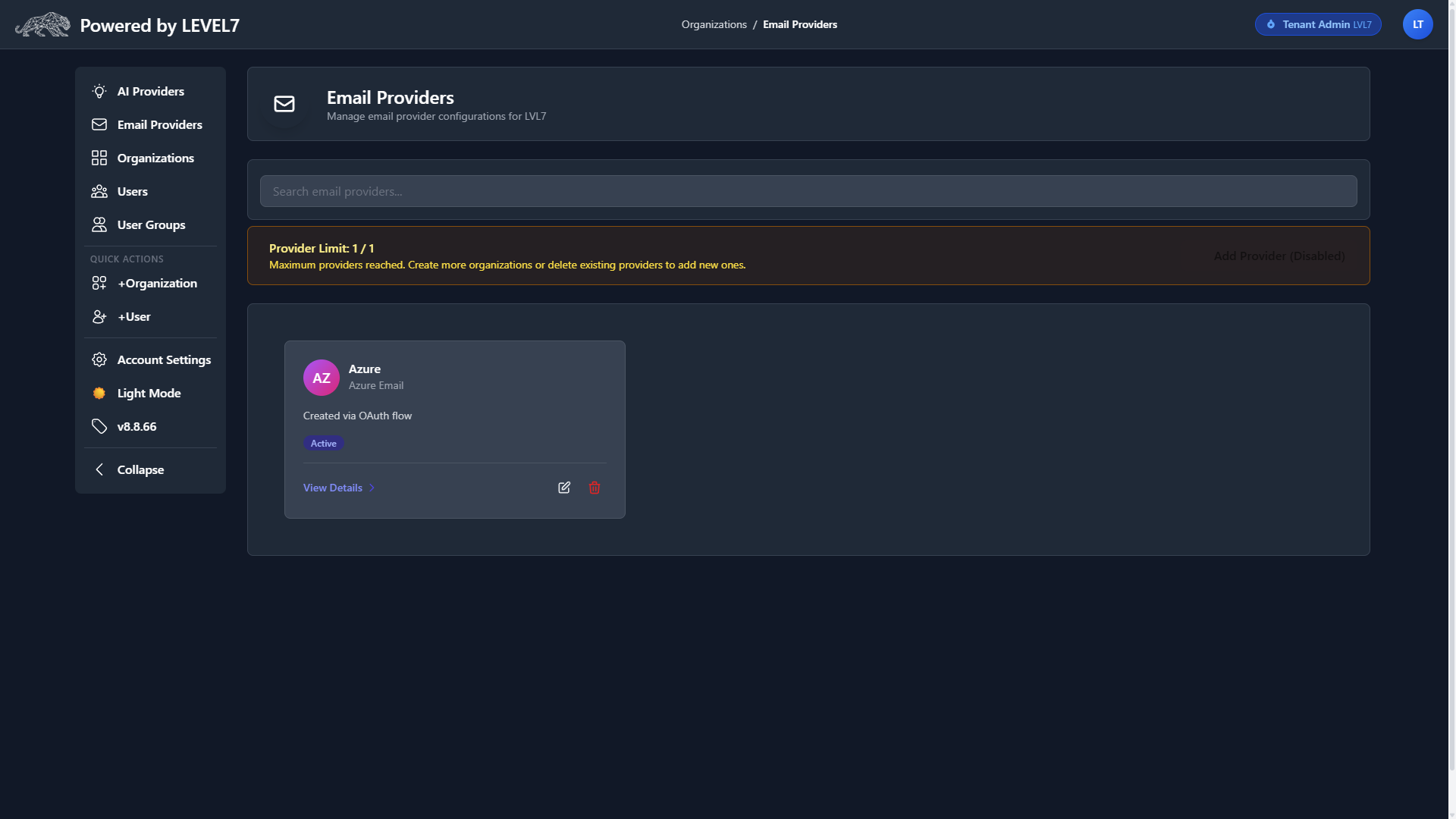
Configure how FITS sends outbound email (such as user invitations and password-reset messages). The list shows each provider and its status; some providers are connected via an OAuth flow. Note the provider limit indicator (e.g. 1 / 1) — when the limit is reached, Add Provider is disabled until you remove one or add more organizations.
Data Import
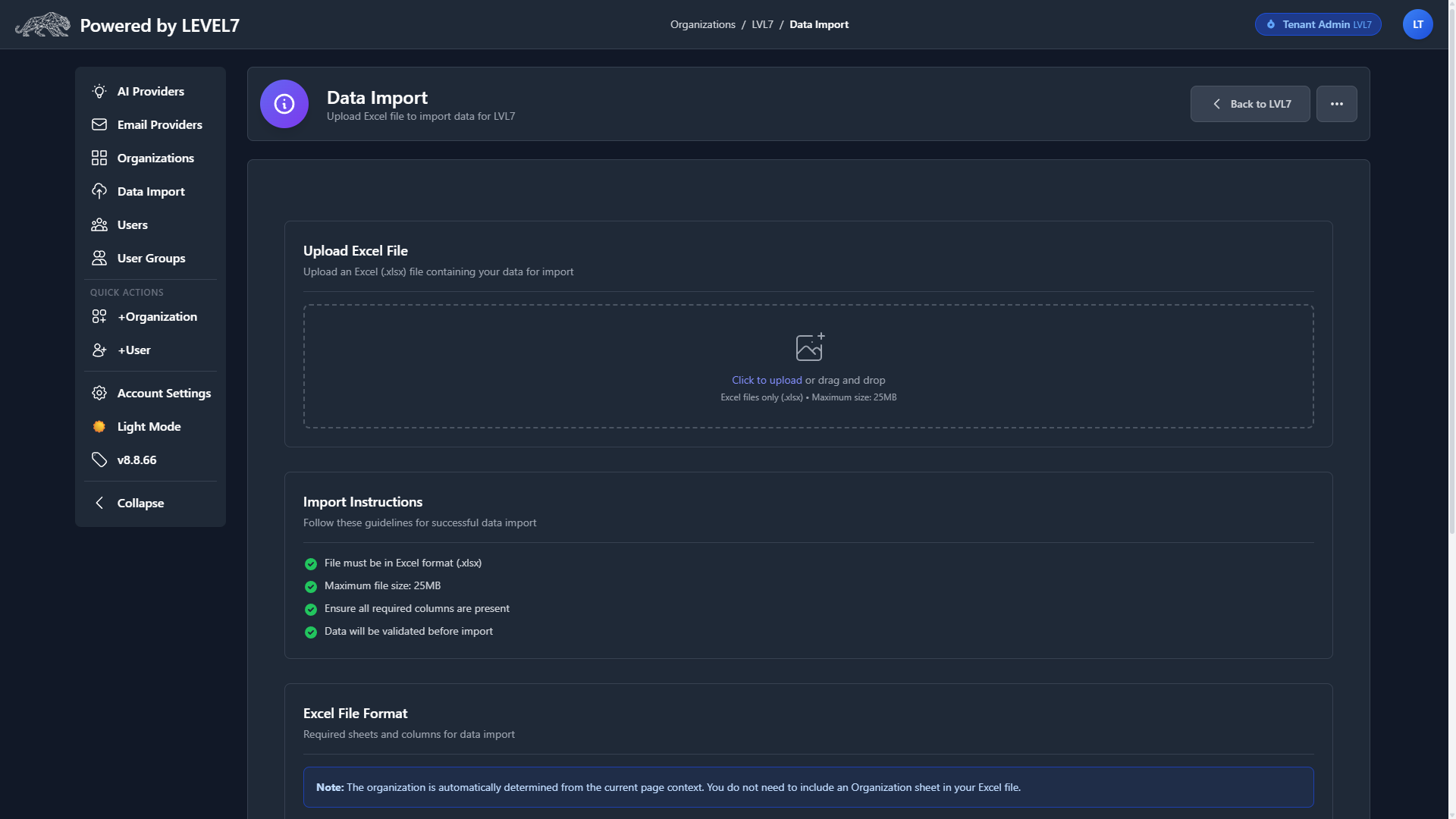
Bulk-load an organization's data from Excel instead of entering it by hand. Drag and drop an .xlsx file (max 25 MB) into the upload zone. A Download Excel Template gives you the correct format, with separate sheets — Employees, Applications, Environments and Servers — each documenting its required columns and an example row. (Available once an organization context is selected.)