End User Guide
The End User workspace is where the day-to-day compliance work happens. Everything is scoped to the organization you're working in (shown at the top of the sidebar). If you belong to more than one organization, use the organization picker to switch.
The modules available to you depend on what your administrator has enabled for your organization. This guide covers all of them.
Dashboard
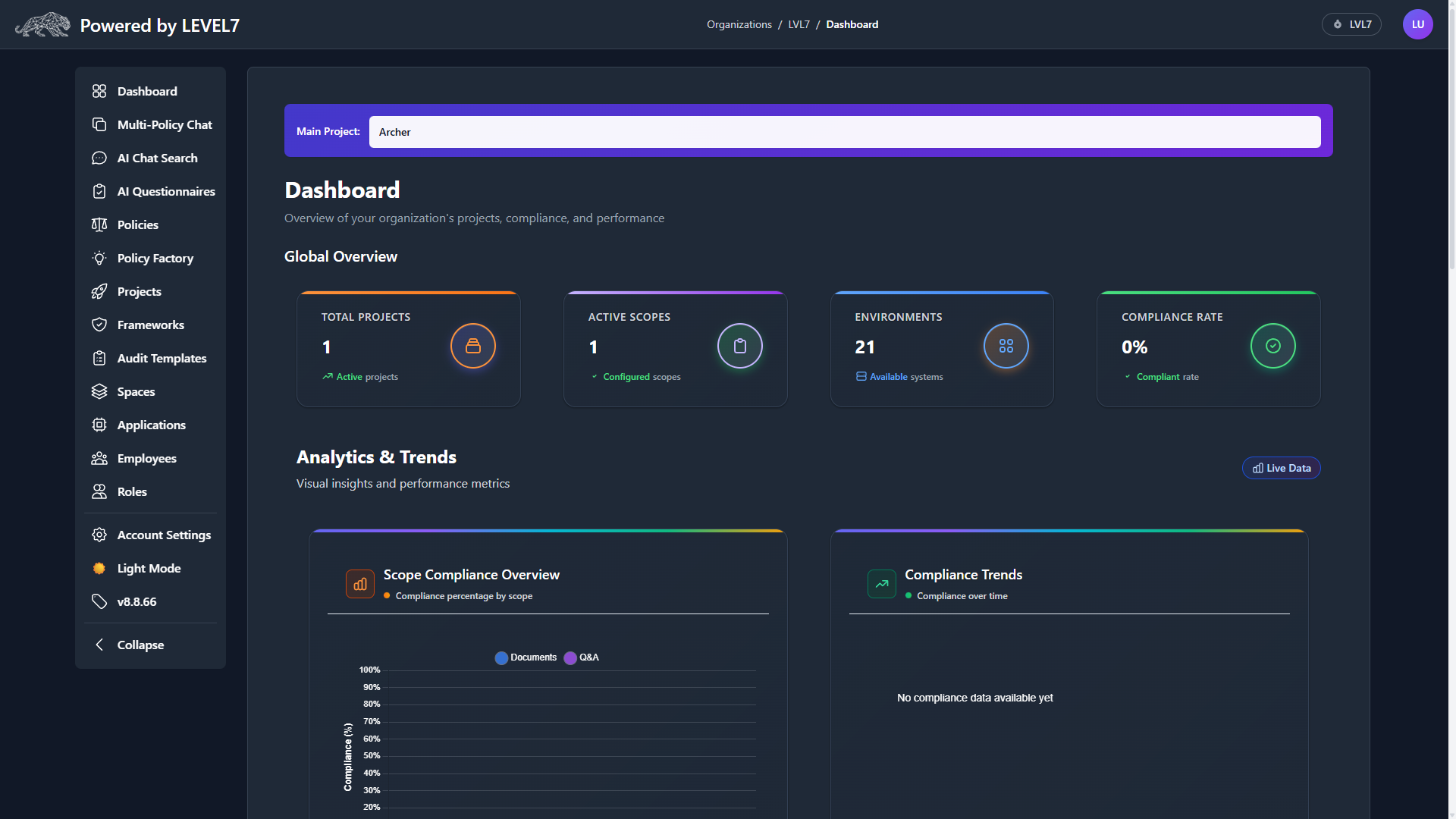
Your landing page for an organization. A project selector at the top lets you focus the view on one project, and Global Overview cards summarize the essentials — Total Projects, Active Scopes, Environments and Compliance Rate.
Below that, an Analytics & Trends area visualizes scope compliance and compliance trends, alongside Key Performance Indicators, a Project Details panel (showing the project's scopes) and a Recent Activity feed.
Policies
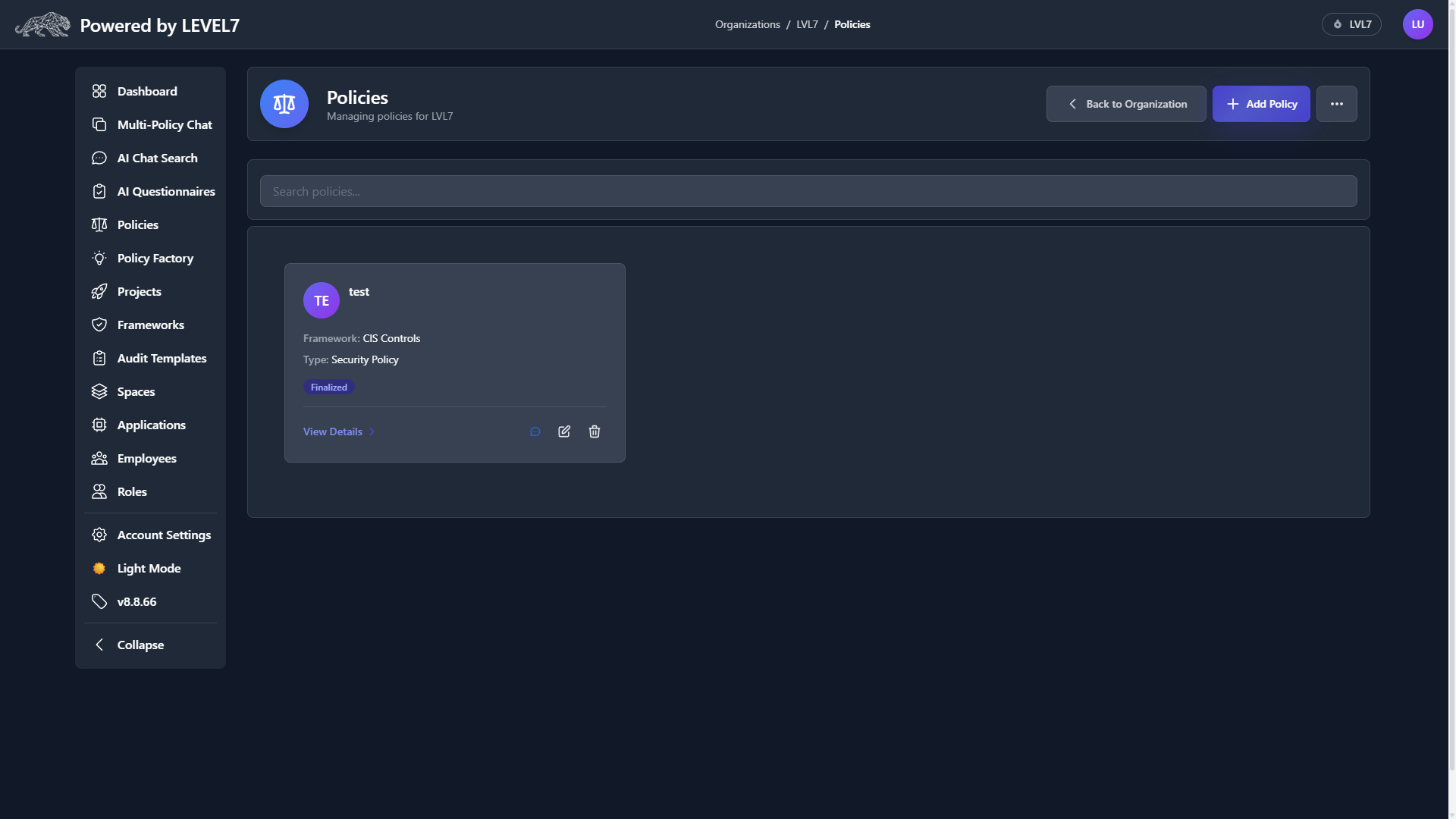
The central library of your organization's policy documents. Each policy card shows its framework (e.g. CIS Controls), type (e.g. Security Policy) and status (e.g. Finalized). Use Add Policy to create one, the search box to find one, or open a card to view the full document.
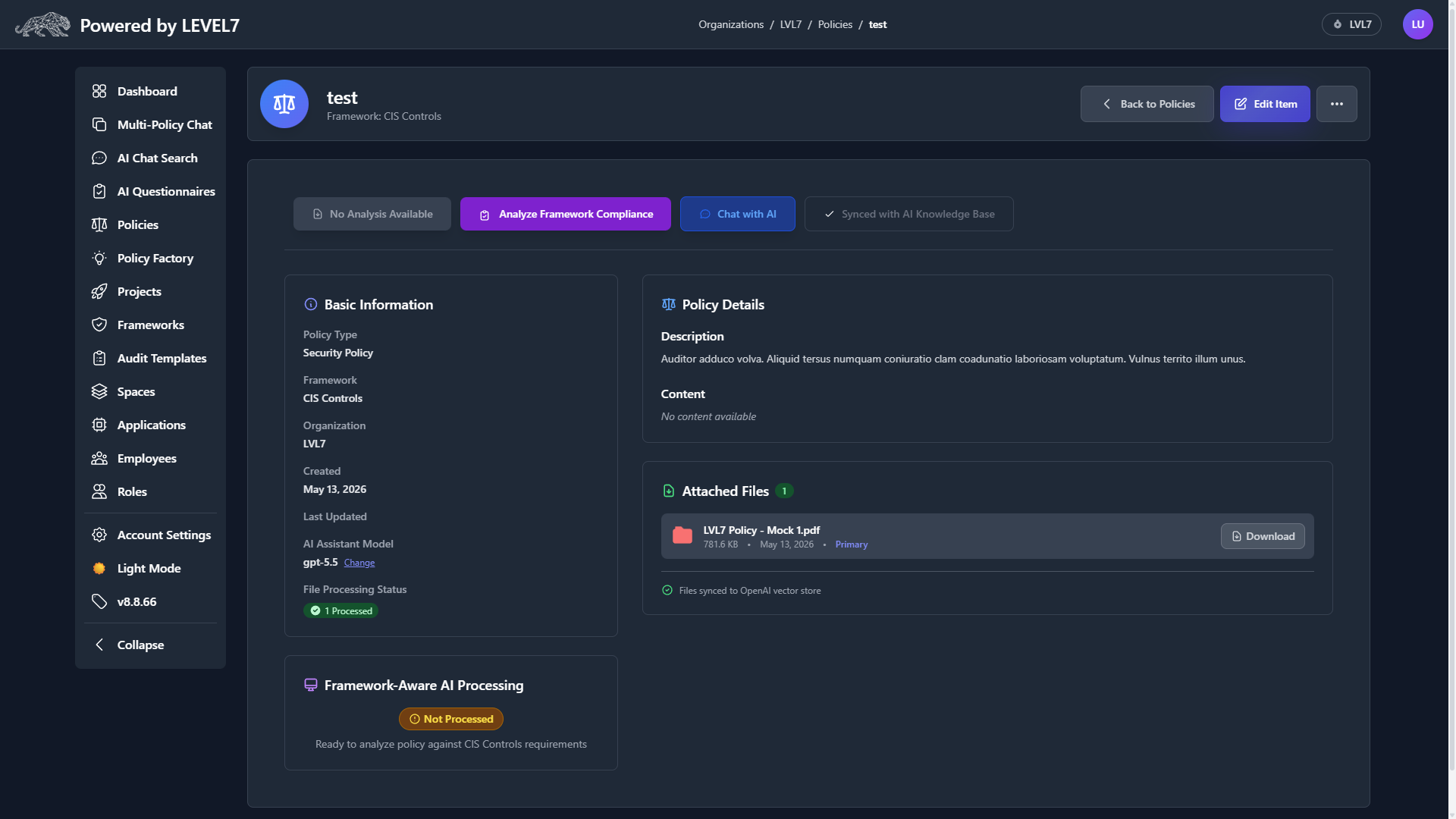
A policy's detail page holds its Basic Information (type, framework, organization, dates, AI assistant model, file-processing status) and Policy Details (description, content and attached files). From here you can Analyze Framework Compliance, Chat with AI about the policy, and see whether it's synced with the AI knowledge base.
Policy Factory
The guided way to produce a new policy. You describe what you need — a Policy Title and a free-text "What do you need?" brief — and choose options such as Detail Level (Executive Brief, Concise, Standard, Comprehensive), Industry and Compliance Framework (both can auto-detect), an optional Audit Template, and any compliance documents to upload. FITS then asks the right follow-up questions and generates a tailored policy for your review before it's saved.
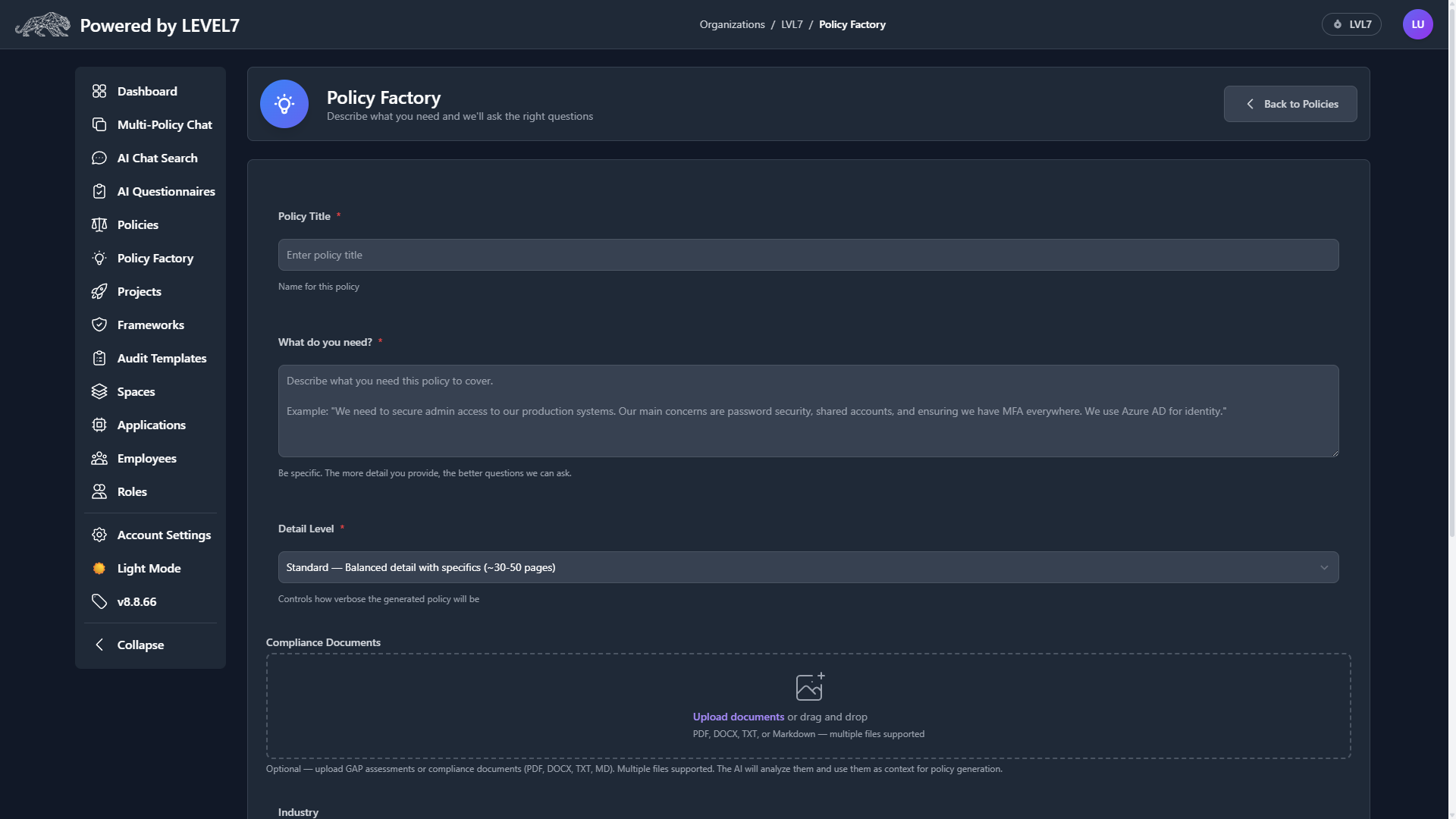 Tip: Generation runs in the background with a progress bar, so you can keep working while your policy is drafted.
Multi-Policy Chat
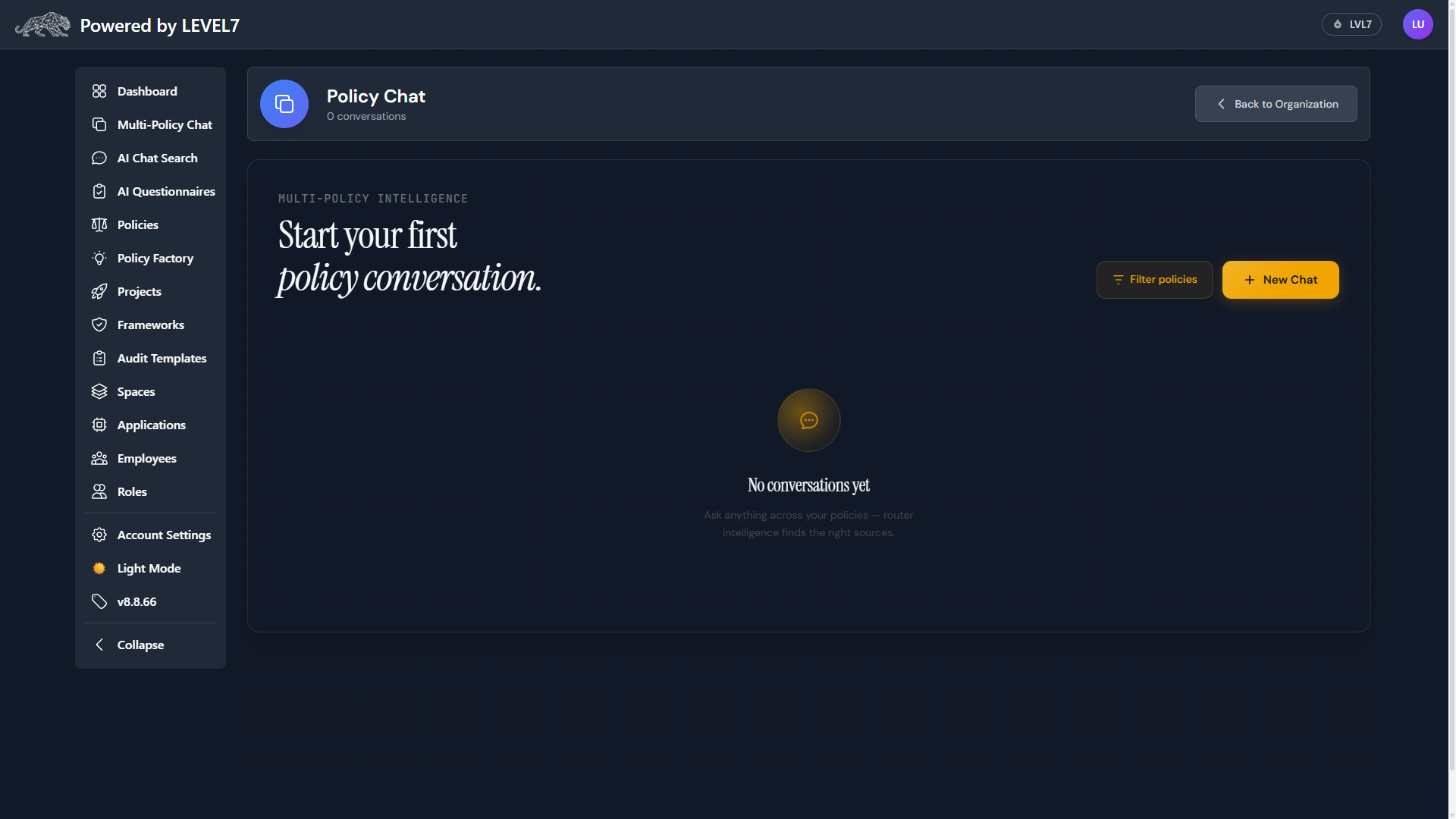
Branded Policy Chat — Multi-Policy Intelligence. Ask a question once and FITS's router intelligence finds the right sources across multiple policies and answers from them together. Use Filter policies to narrow the scope and New Chat to start a fresh conversation.
AI Chat Search
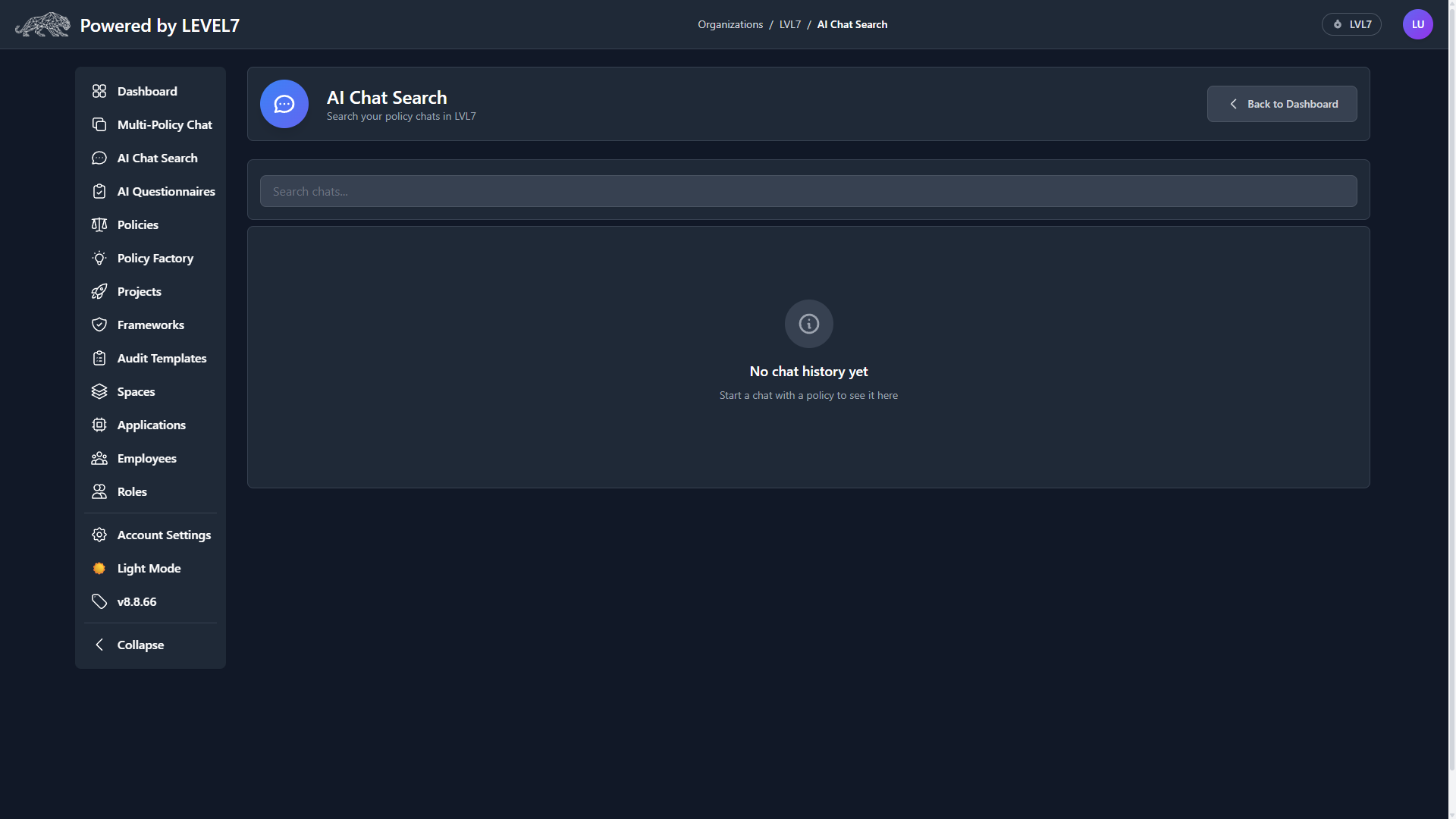
Search across your previous policy-chat conversations in the organization. Type a query to quickly find an earlier answer or thread instead of scrolling through history.
AI Questionnaires
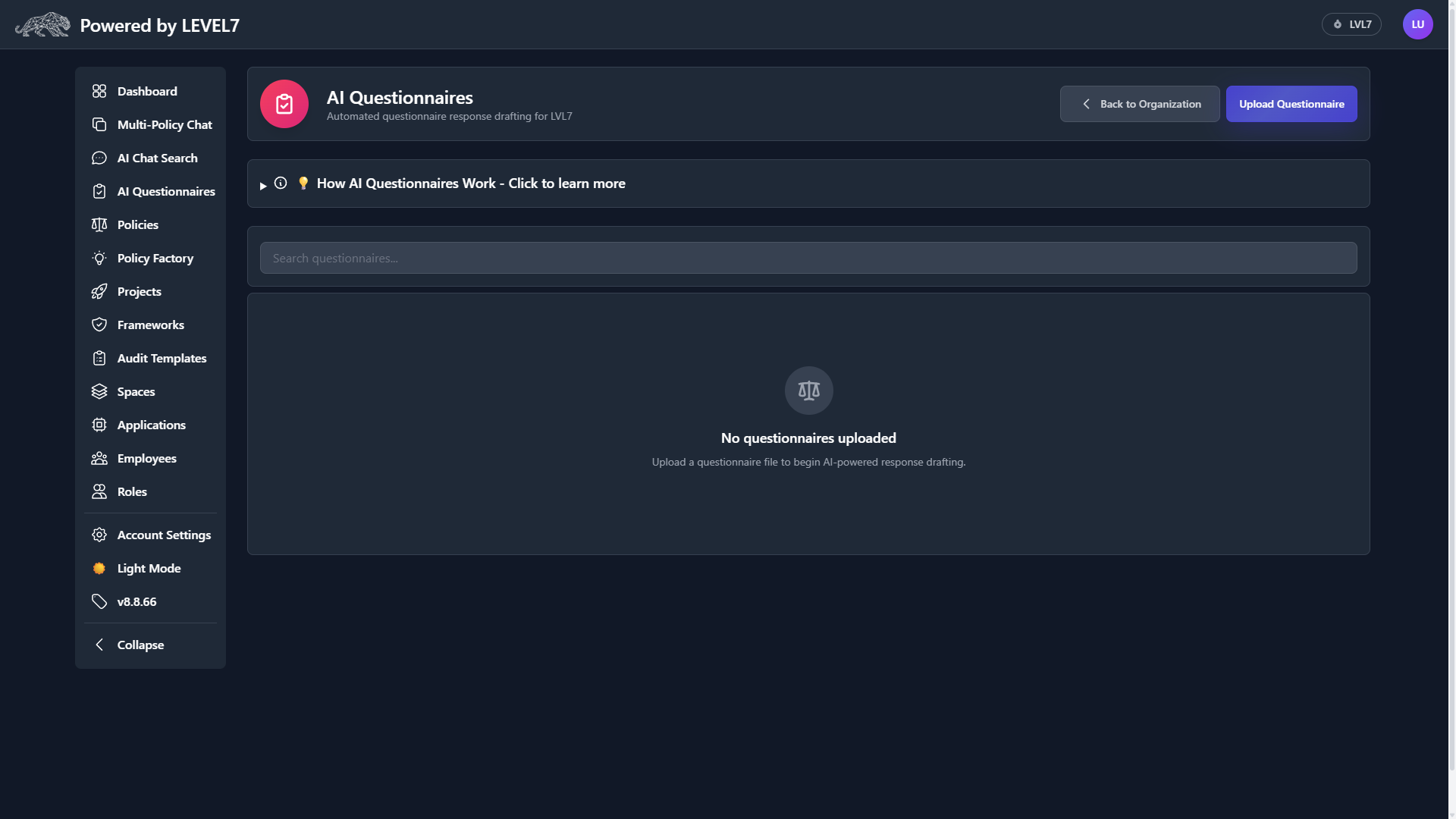
Upload a security questionnaire and let FITS draft the responses automatically, based on your organization's policies and documentation. The built-in "How AI Questionnaires Work" panel explains the flow; use Upload Questionnaire to begin.
Audit Templates
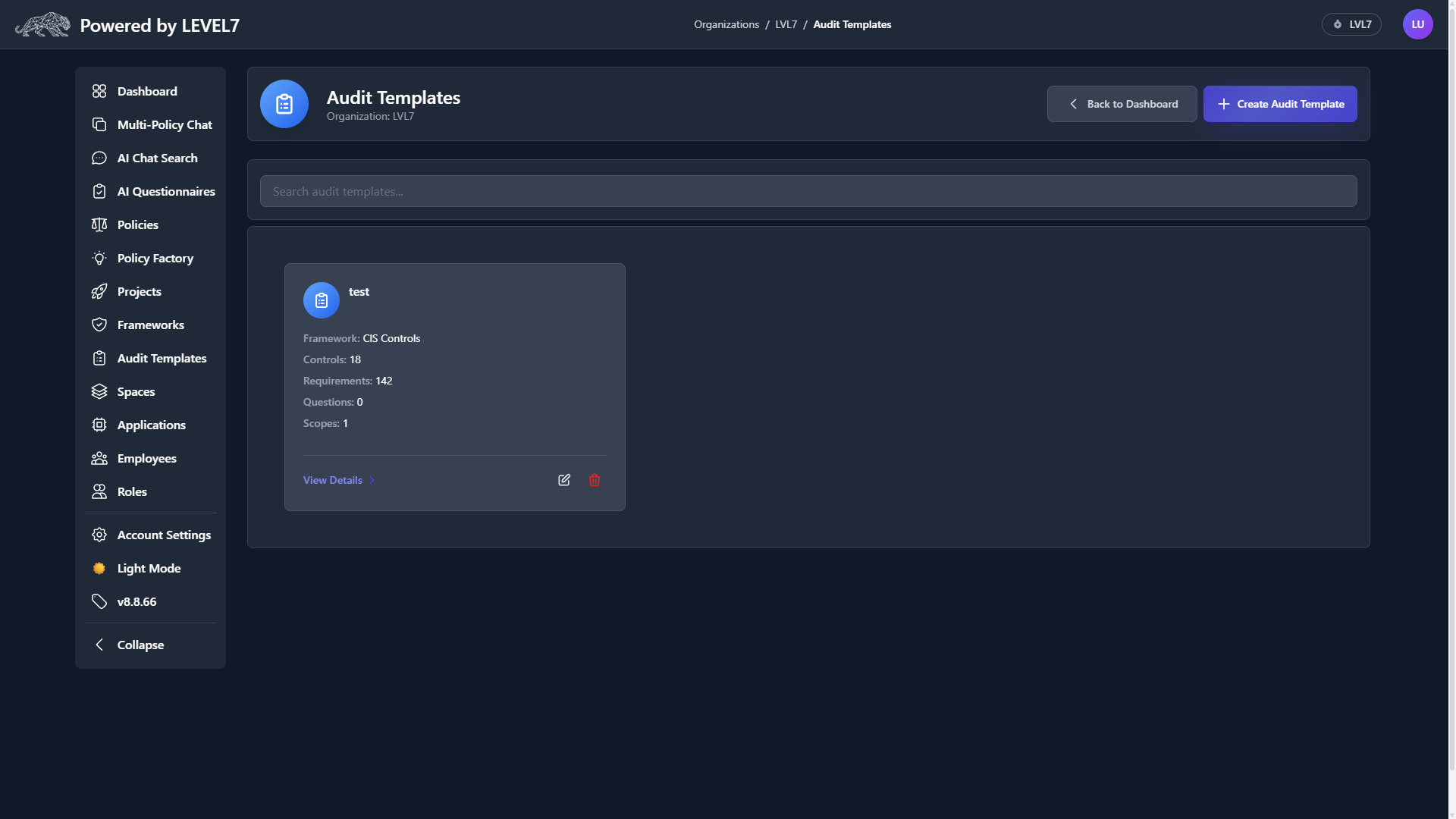
Reusable templates for scope assessments and audits. Each template is tied to a framework and reports how many controls and requirements it covers, how many questions it contains, and how many scopes use it. Use Create Audit Template to build a new one and reuse it across projects.
Frameworks
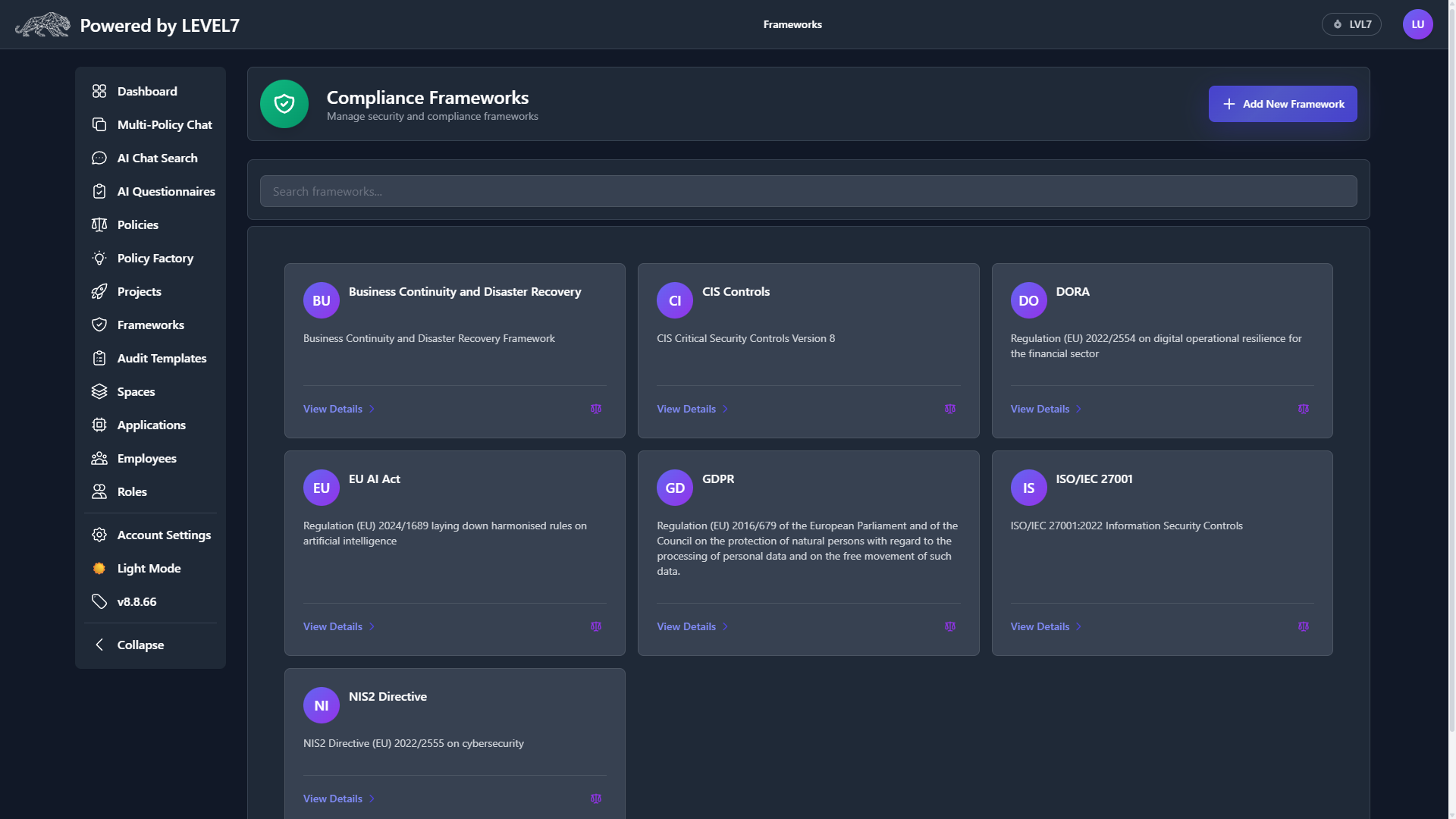
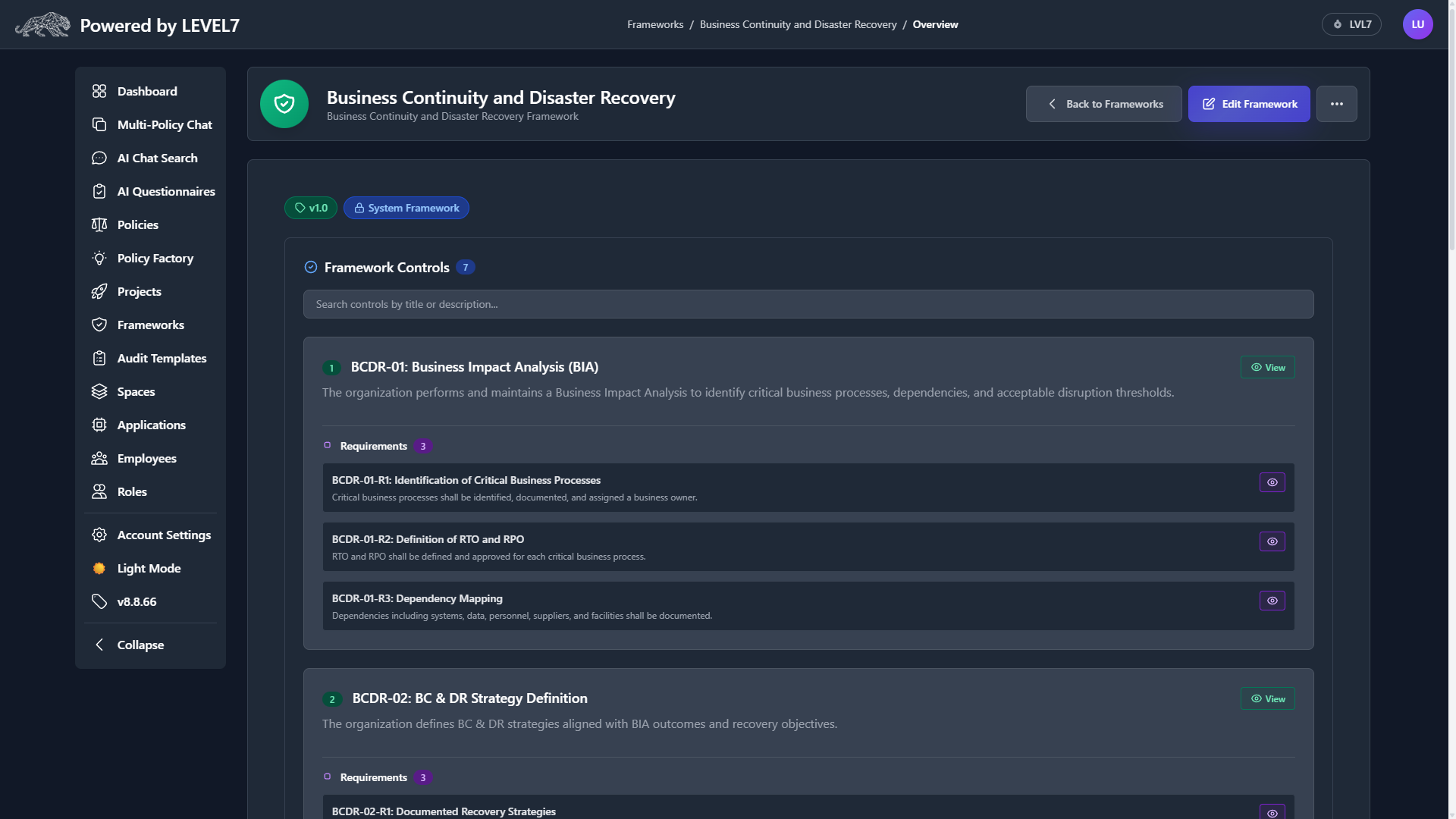
Browse the Compliance Frameworks available to you. Out of the box this includes common standards such as ISO/IEC 27001, GDPR, NIS2 Directive, CIS Controls, DORA, the EU AI Act, and Business Continuity & Disaster Recovery. Open a framework to explore its controls — each with a title, description and detailed requirements — which your policies and assessments map against. You can also Add New Framework.
Projects
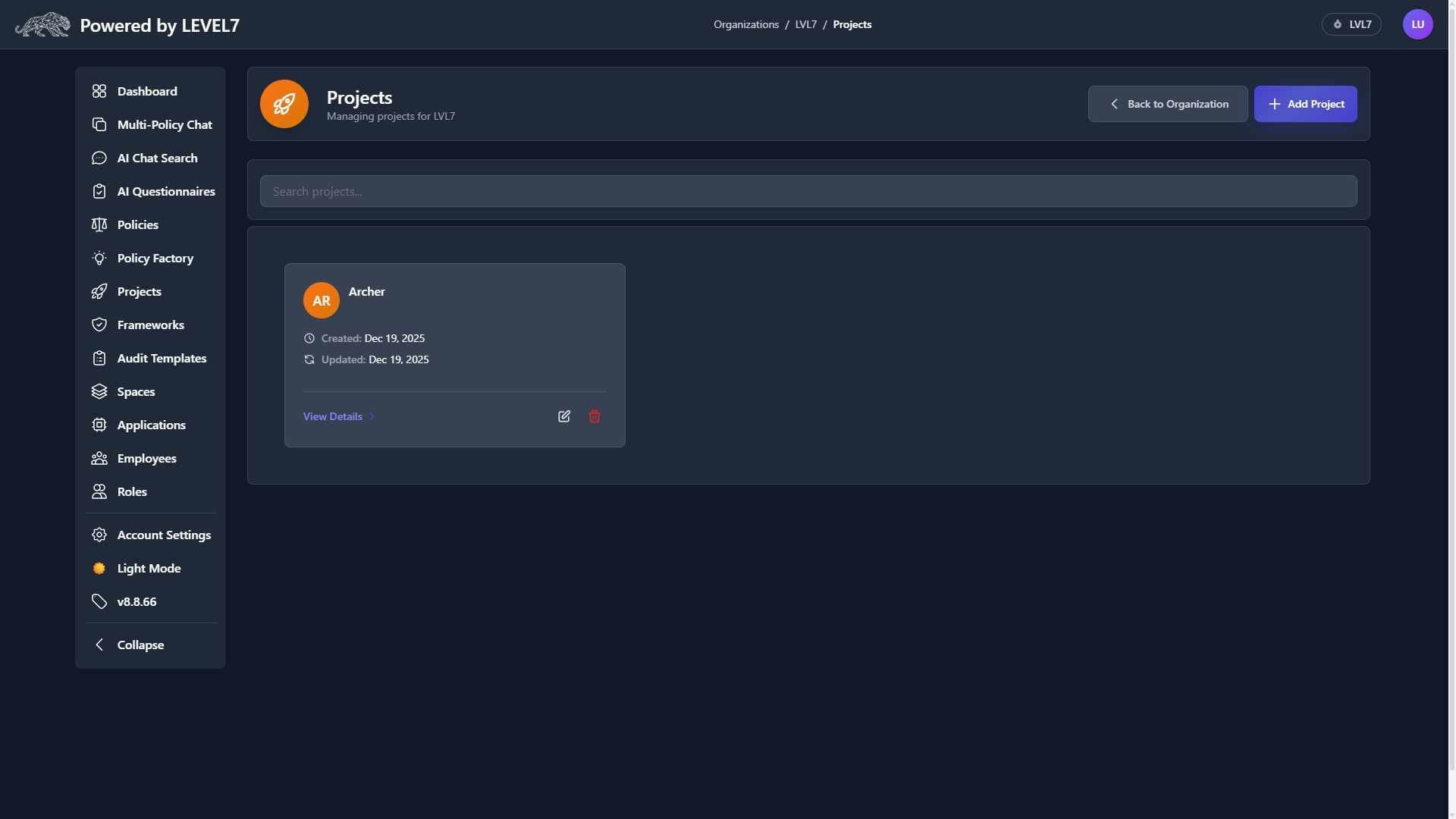
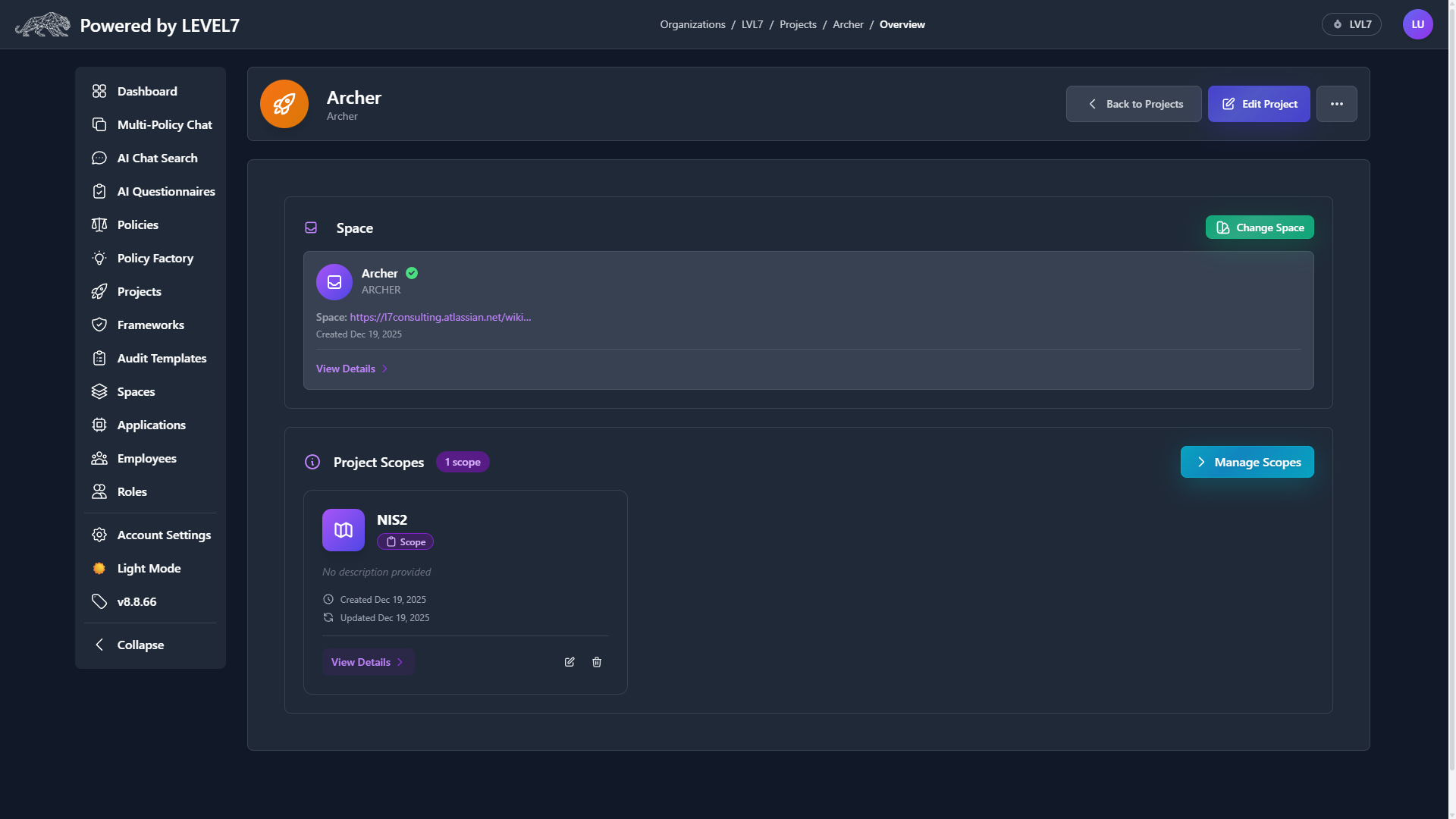
Organize compliance work into projects. A project ties together a knowledge Space (see below) and one or more scopes — each scope defining what's being assessed (its environments and assets). Use Manage Scopes to adjust scope, and Change Space to link a different knowledge space. Create projects with Add Project.
Spaces
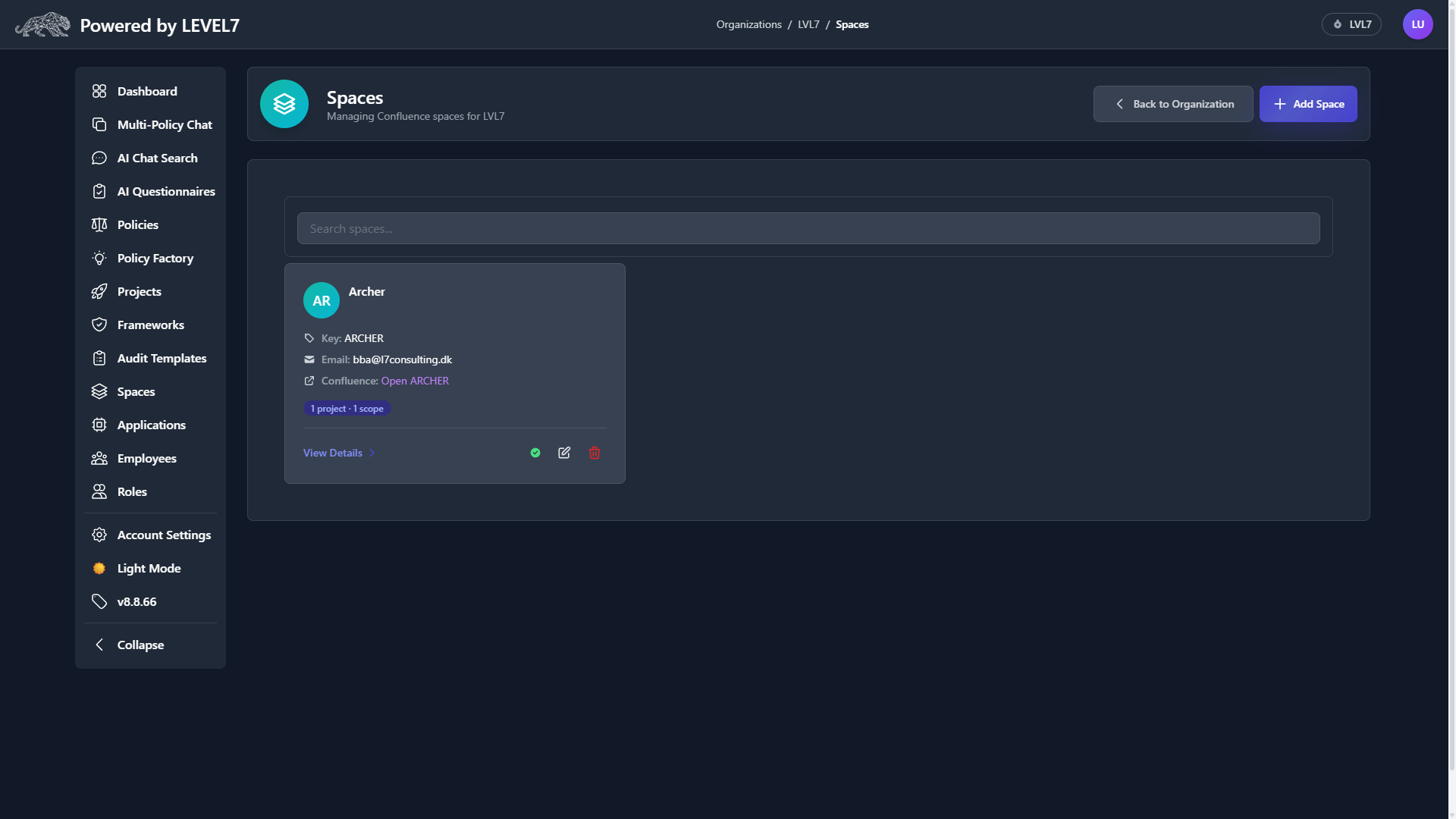
Spaces connect FITS to Atlassian Confluence. Each space records its key, the linked Confluence site, and which project/scope it's associated with — giving the AI features and your team a shared documentation source. Use Add Space to connect one.
Applications
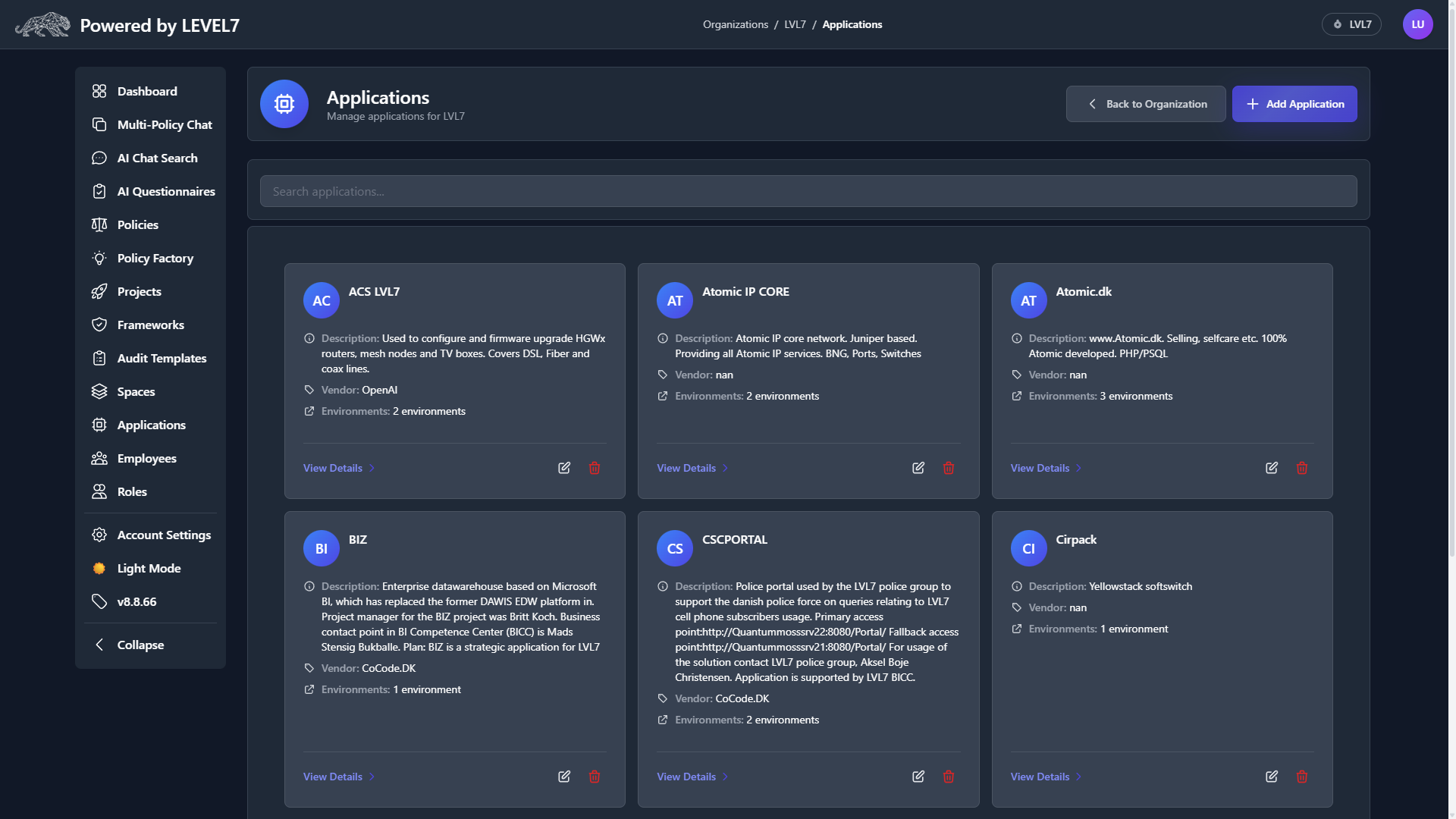
A live inventory of the applications your organization uses. Each entry records details such as vendor, description and the number of environments it runs in, so applications can be brought into scope for assessments and risk work. Use Add Application to add one; the list paginates for large inventories.
Employees
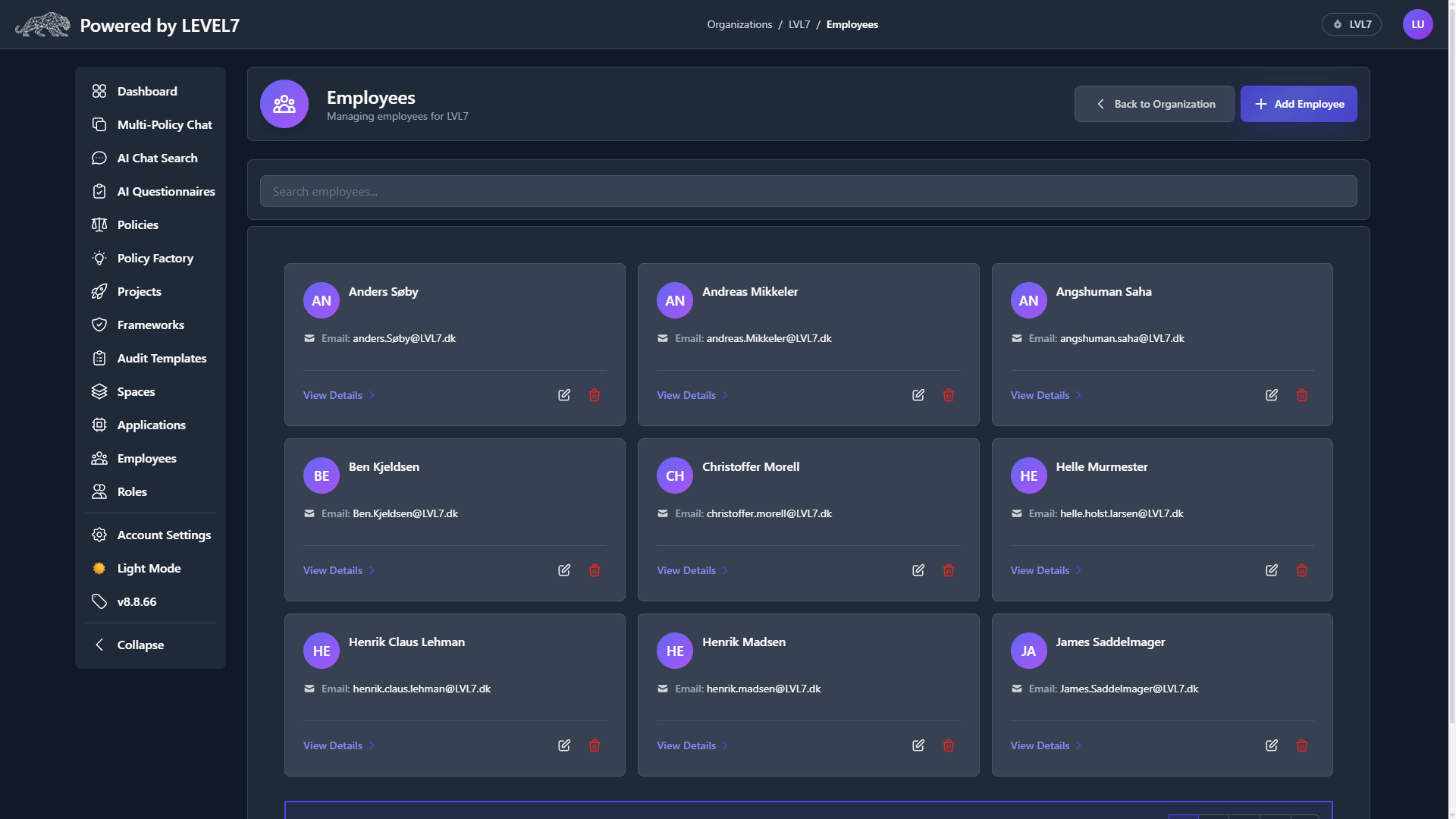
The directory of people in the organization, each with a name and email. Employees can be linked to roles and responsibilities, forming the human layer of your compliance model. Use Add Employee to add someone; the list paginates for larger teams.
Roles
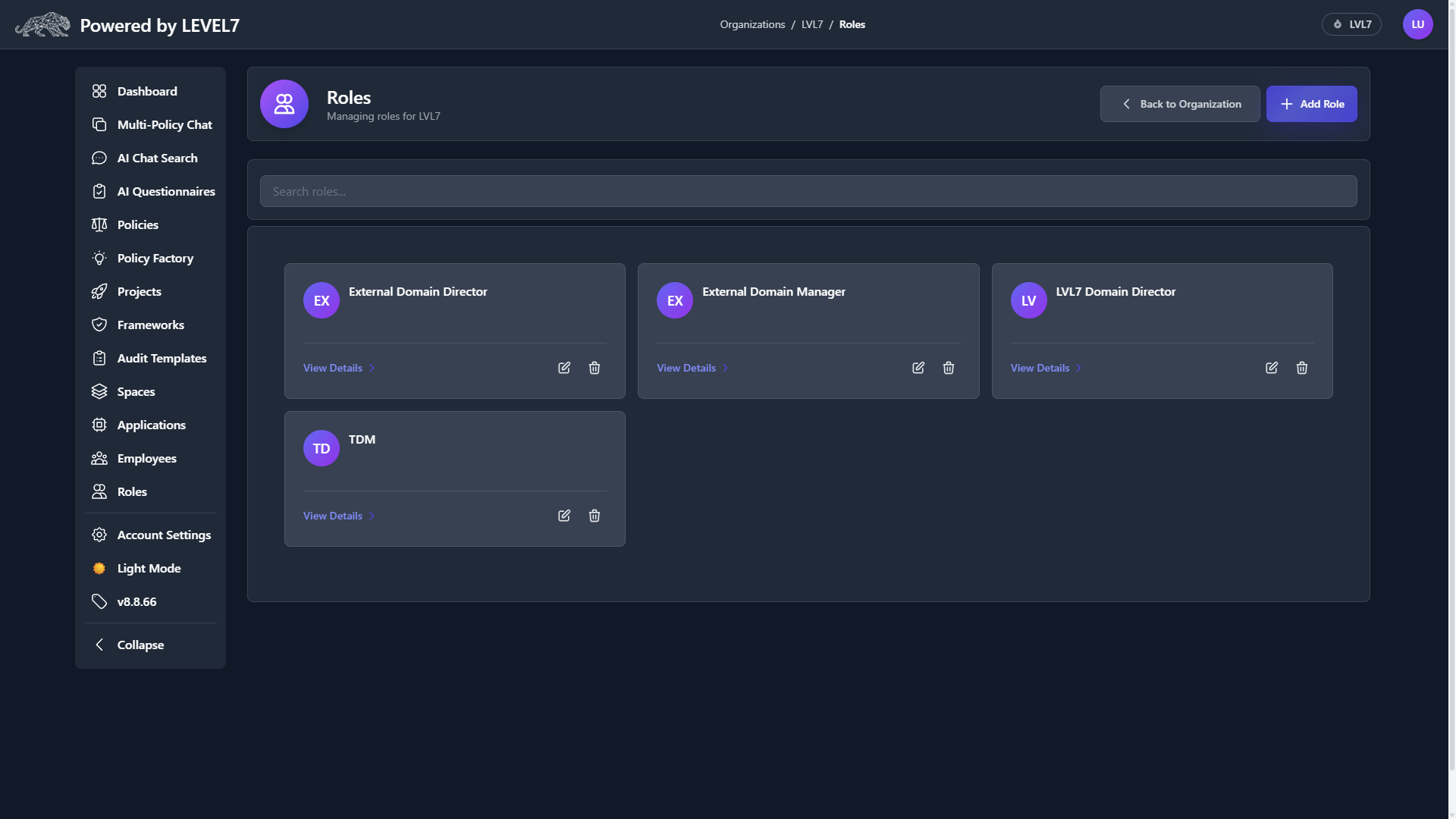
Define the organizational roles used across the organization (for example domain directors and managers). Roles connect people to the duties and controls they're accountable for. Use Add Role to create one.
Account Settings
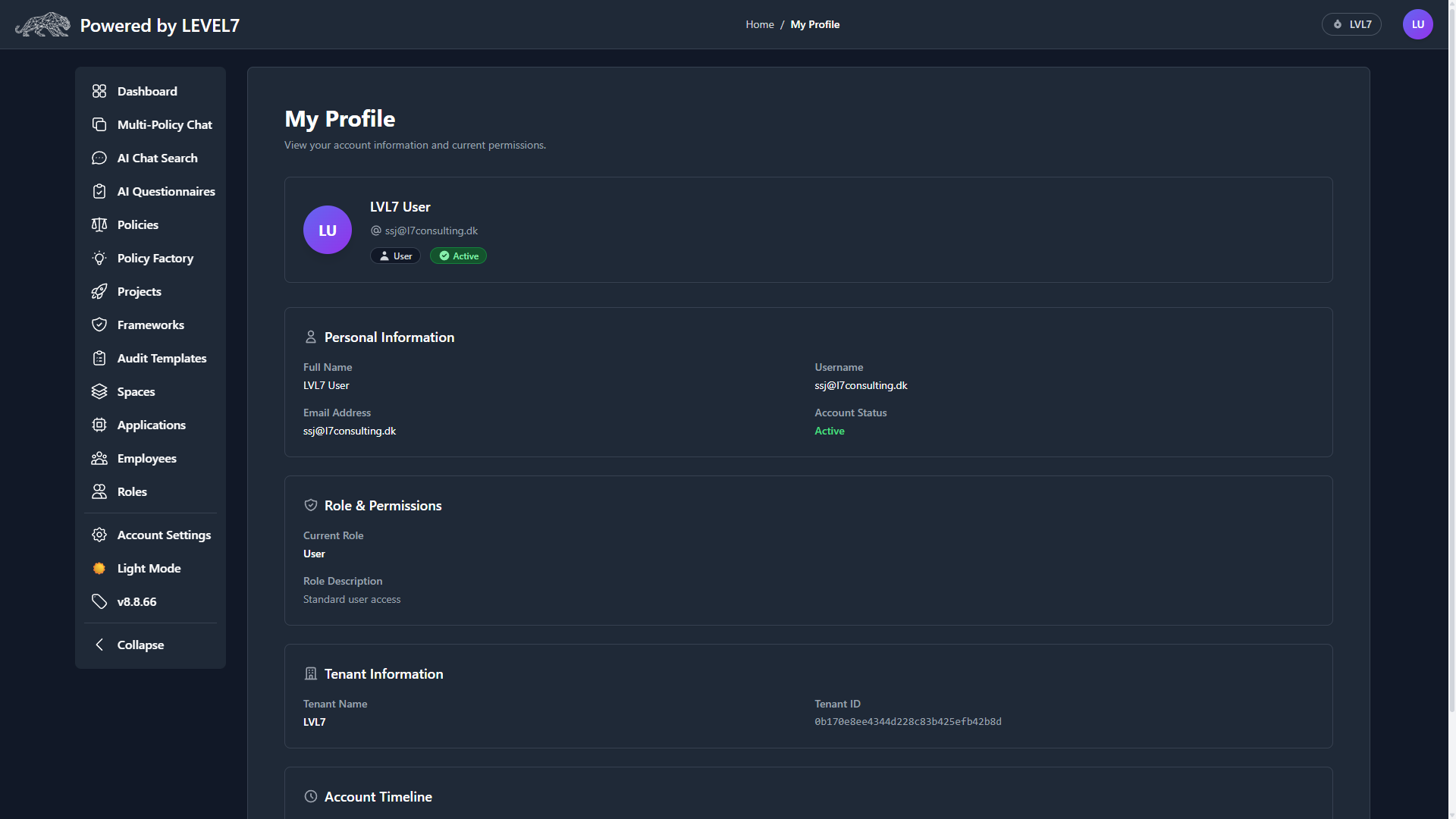
My Profile shows your account at a glance: Personal Information (full name, username, email, account status), your Role & Permissions, the Tenant Information you belong to, and an Account Timeline. You can switch between light and dark theme from the bottom of the sidebar at any time.